
Getting Started with Self-Hosted ColoSafe
Overview of ColoSafe Backup
Setting up and configuring Self-Hosted ColoSafe Management Console on a Windows platform
Step 1 - Install the Server
Once you have downloaded and installed ColoSafe Core, you will be presented with the ColoSafe Core Service Manager app, and the First-Run Setup Wizard. This wizard will help get your ColoSafe Management Console up and running. The ColoSafe Management Console will then allow you to access the full range of configuration options on its main Settings page.
Windows Self-Hosted ColoSafe Management Console Activation
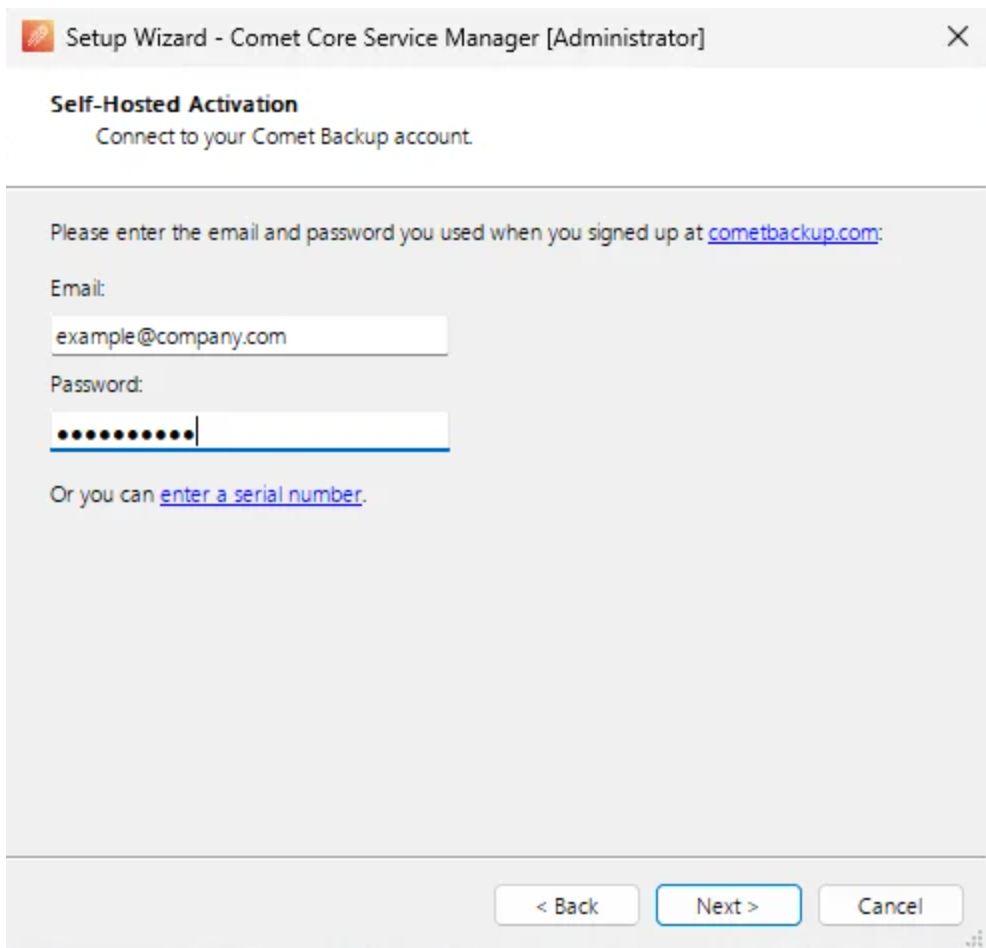
To validate your Self-Hosted ColoSafe Management Console, please enter your account details into the ColoSafe Core installer.
Alternatively, you can supply a serial number. Generate a serial from CometSafebackup.com. Log in to your Comet Account. On the Dashboard, select "My Servers" in the top menu, then click the "Add Service" button.
Web Interface
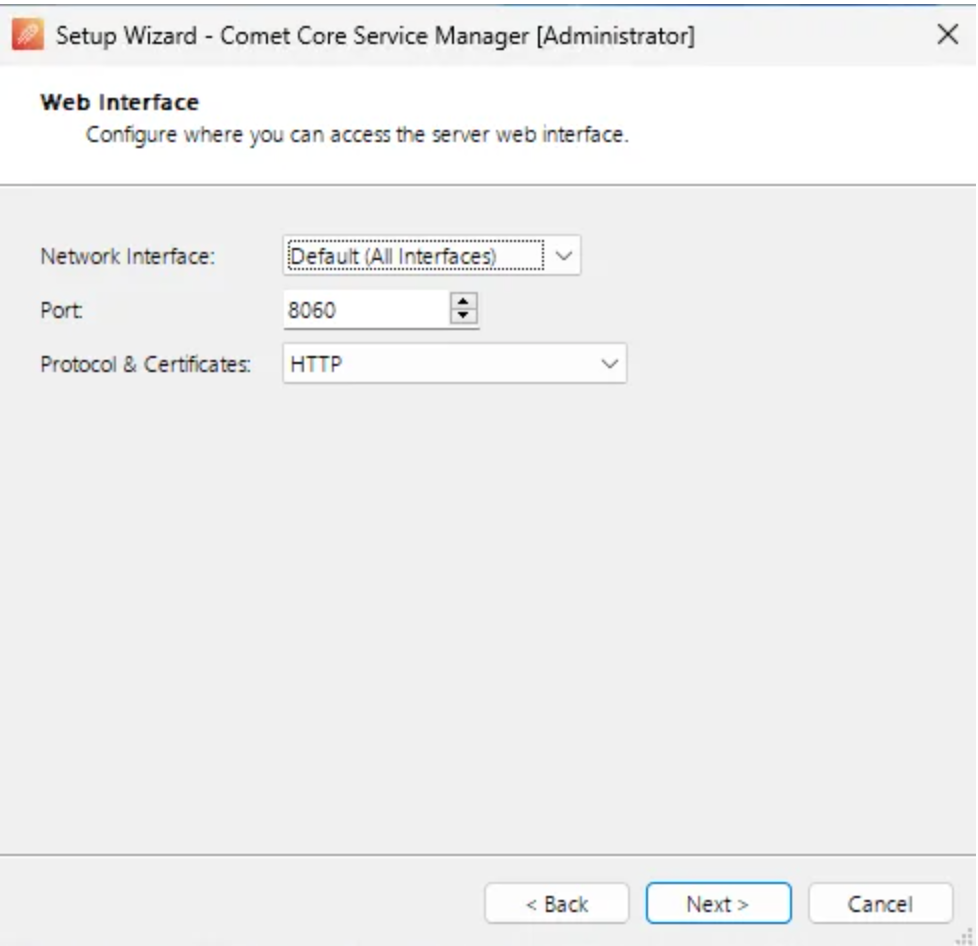
ColoSafe Management Console is accessed via a web interface. From here you can configure access to the Server Web Interface. Please note the addresses in the drop down for the Server Interface. You can also configure SSL from this screen, or use our free automatically-renewing SSL certificate which integrates with LetsEncrypt, by selecting the 'Automatic' option.
Admin accounts
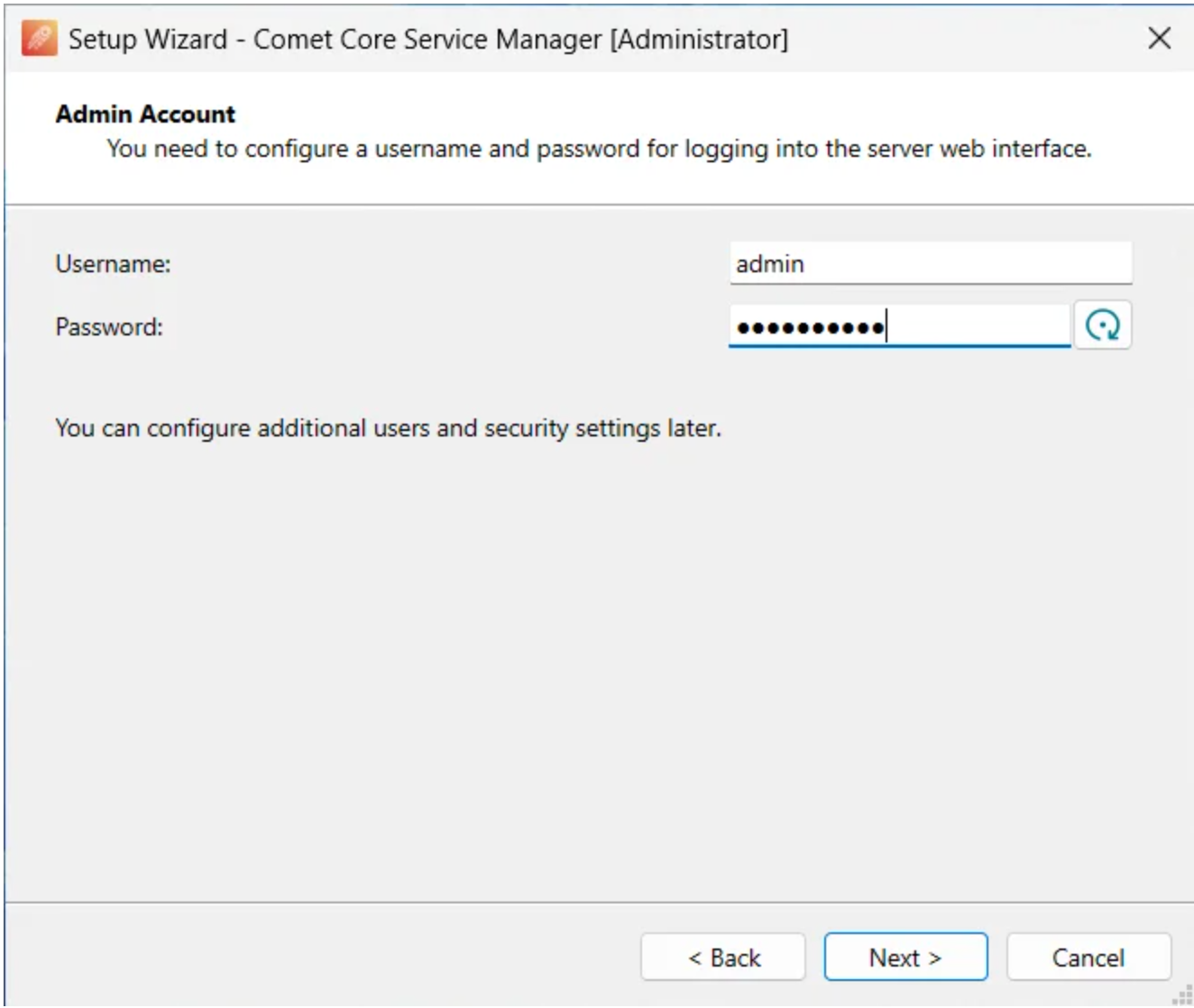
Configure administrative account access to your ColoSafe Management Console. We strongly suggest changing the password of the admin user.
Customer Data Storage (Self-Hosted Storage Gateway)
Note: The same ColoSafe Core install and Self-Hosted License can be used to run both the Self-Hosted Management Console and Storage Gateway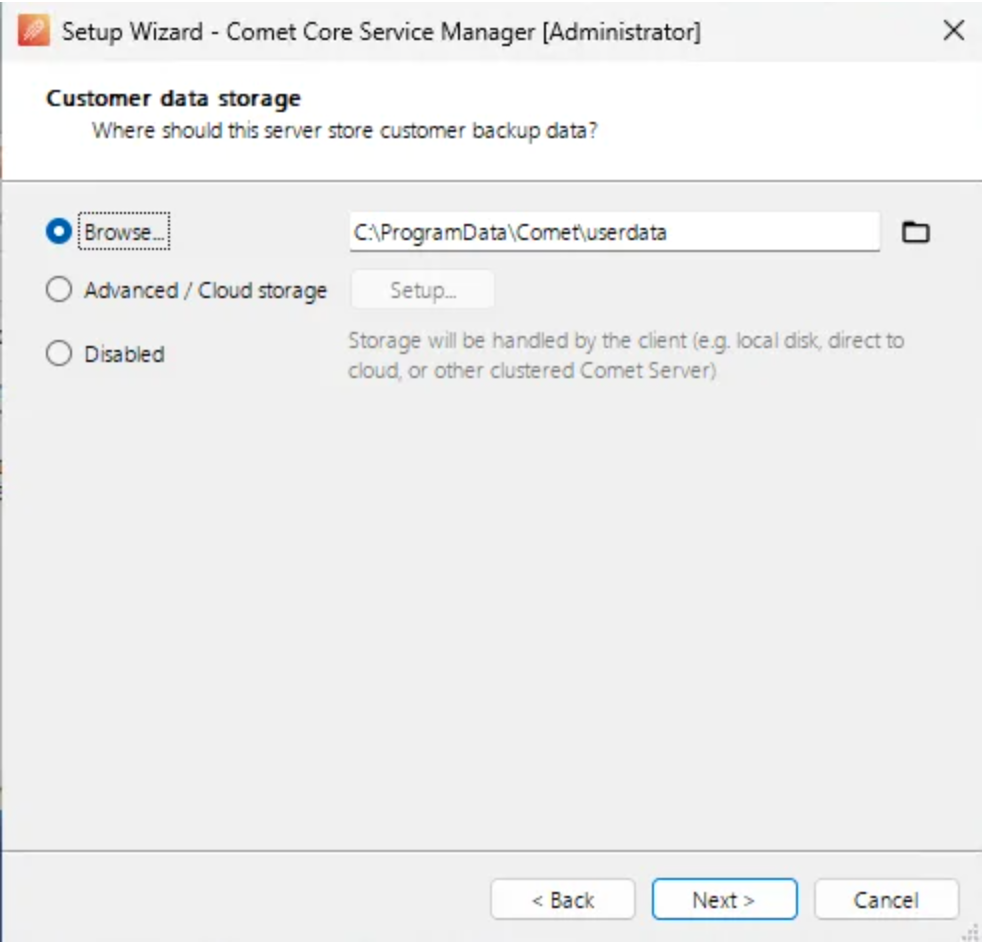
From this screen, you can select the storage location of where your Self-Hosted Storage Gateway will store the backup data.
Wizard Complete
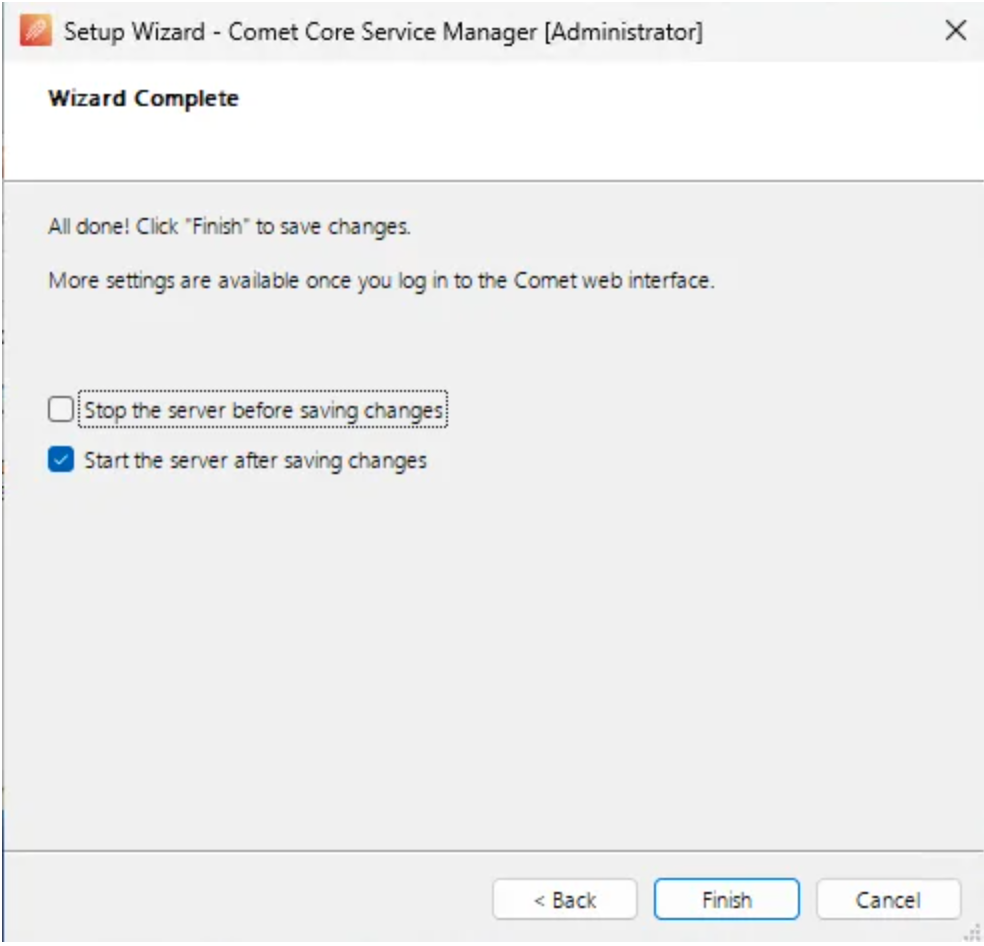
You have now setup the basic elements and are almost ready to start running a backup. Press 'Finish' and ColoSafe will start. The Management Console can be accessed at the address specified in step 2.
ColoSafe Management Console Login
Step 2 - Login to the Management Console
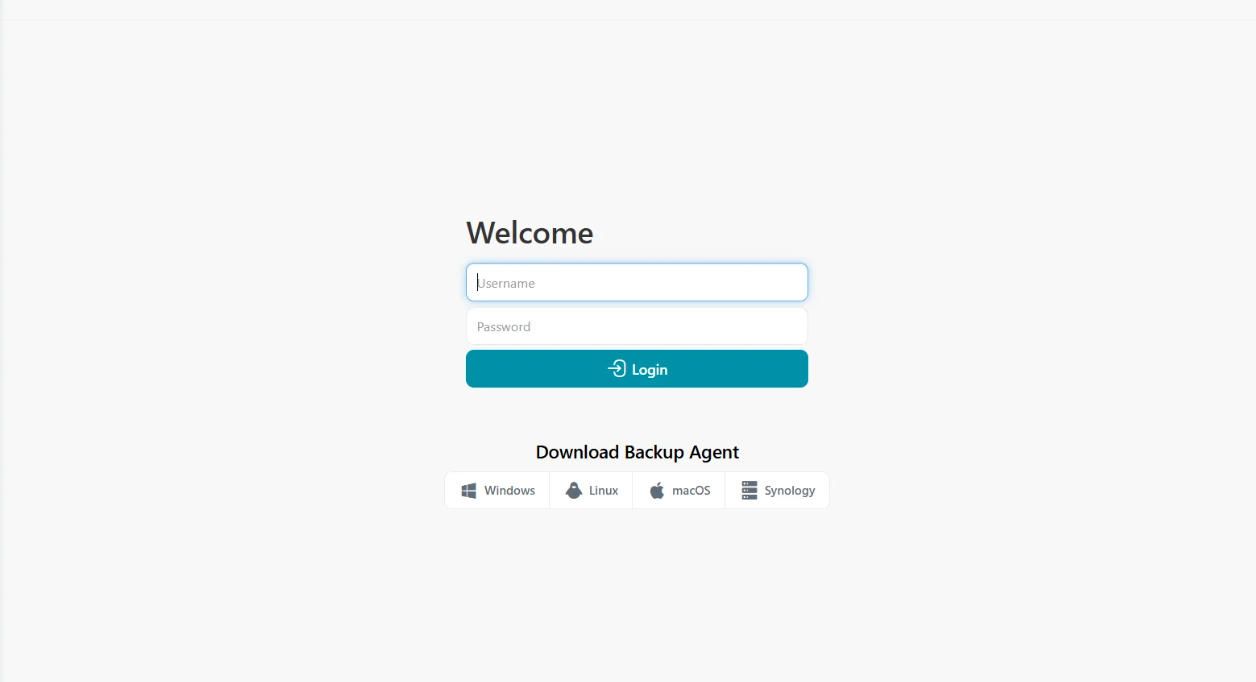
After navigating to the address of your ColoSafe Management Console in a browser, you will be able to login with the user profile you set up.
That covers the basics of setting up your Self-Hosted ColoSafe Management Console and Storage Gateway to run a backup.
ColoSafe Backup installation
Windows
System Requirements
|
Specification |
Minimum |
Recommended |
|
CPU |
x86 or x86-64processor (minimum 4 cores/threads) with SSE2 and SSSE31 |
x86-64 processor (8 cores/threads or more) |
|
RAM 2 |
8 GB |
16 GB |
|
OS |
Windows 7 or newer |
Windows 10 or newer |
|
OS (Server) |
Windows Server 2008 R2 or newer |
Windows Server 2016 or newer |
|
Hard Drive |
|
SSD or NVME Drive |
|
Network 3 |
1 Mbps or faster download/upload speed |
1 Gbps or faster download/upload speed. |
1 SSSE3 required as of version 24.12.0 - Intel Core 2 Duo, AMD Bulldozer or newer.
2 ColoSafe does not consume 8GB of RAM. Memory consumption varies depending on the job being run.
3 Links with high latency or unstable WAN connections are not recommended, as these impact both upload and download performance.
Windows XP / Server 2003
At the time of writing, there is no version of ColoSafe available for Windows XP / Server 2003. All versions of ColoSafe rely heavily on features that were only introduced in Windows Vista / Server 2008.
Windows XP / Server 2003 no longer receives security patches from Microsoft. It is unsafe to connect such a machine to the internet.If you are attempting to supply backup services to a customer in this situation, you should arrange to first upgrade their operating system with urgency.
You can work around this issue by
-
installing ColoSafe Backup on another machine, and then backup the XP machine over the network; or
-
virtualizing the XP machine, and backing up the VM guest from the VM host. This also allows you to remove internet access from the XP machine.
Windows Vista / Server 2008
Support for Windows Vista was removed in ColoSafe Backup 22.9.1. The final version of ColoSafe Backup that runs on Vista or Windows Server 2008 is ColoSafe 22.8.x or 22.9.0.
The ColoSafe Management Console has a mandatory minimum TLS version of TLS 1.2. Windows Server 2008 users may require KB4019276to continue accessing the ColoSafe Management Console; this update is also required for ESU (Extended Security Updates) for Windows Server 2008.
Windows 7 / Server 2008 R2
ColoSafe Backup continues to support Windows 7 and Server 2008 R2 and will install successfully on these operating systems. However, Microsoft ended Extended support for Windows 7, and Server 2008 R2 on January 14th 2020. Future versions of ColoSafe may remove support for such older versions of Windows which are no longer under active security support from Microsoft.
Windows 8 / 8.1 / Server 2012 / Server 2012 R2
ColoSafe Backup continues to support Windows 8, 8.1, Server 2012, and Server 2012 R2 and will install successfully on these operating systems. However, Microsoft ended Extended support for Windows 8, 8.1, Server 2012, and Server 2012 R2 on October 10th 2023. Future versions of ColoSafe may remove support for such older versions of Windows which are no longer under active security support from Microsoft.
Installation
Run the ColoSafeBackup_install.exe file and follow the prompts.
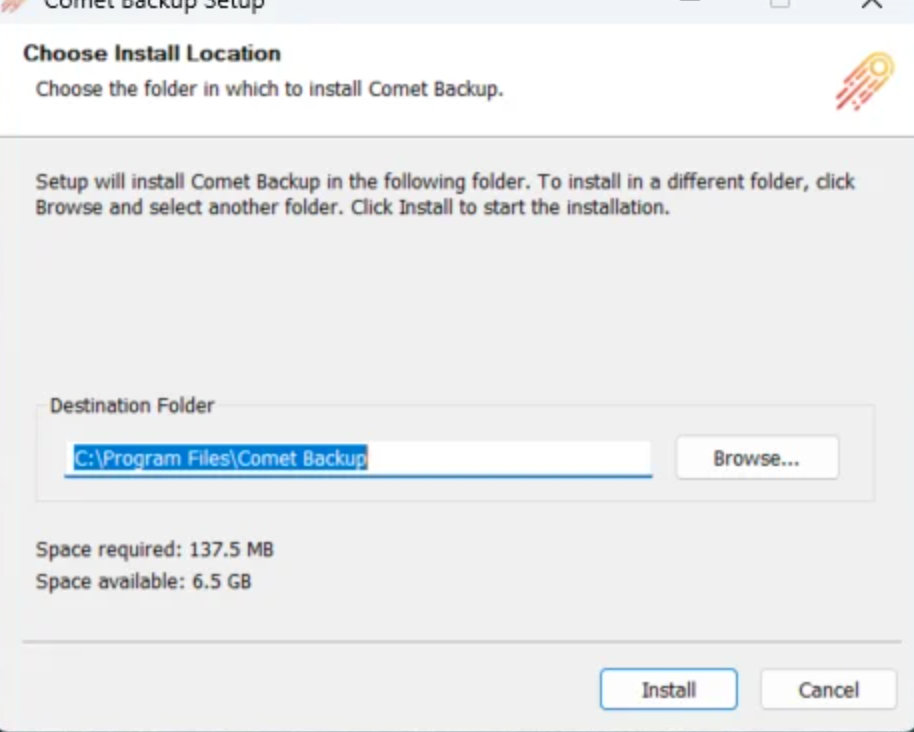
Once installed, the client software prompts for account details to log in.
Silent installation (Windows advanced)
Remote registration requires ColoSafe 23.9.0 or later.
With remote registration (lobby mode)you can remotely register/assign the devices to a User profile, right from the ColoSafe Management Console admin web interface.
-
Command Prompt
install.exe /S /LOBBY -
PowerShell
Start-Process -Wait .\install.exe -ArgumentList "/S /LOBBY"
If you wish to enable remote registration for previously installed clients, or rejoin the lobby after a client restart, you can run the following backup-tool command:
cd "C:\Program Files\ColoSafe Backup"
backup-tool.exe login join-lobby [server-url]
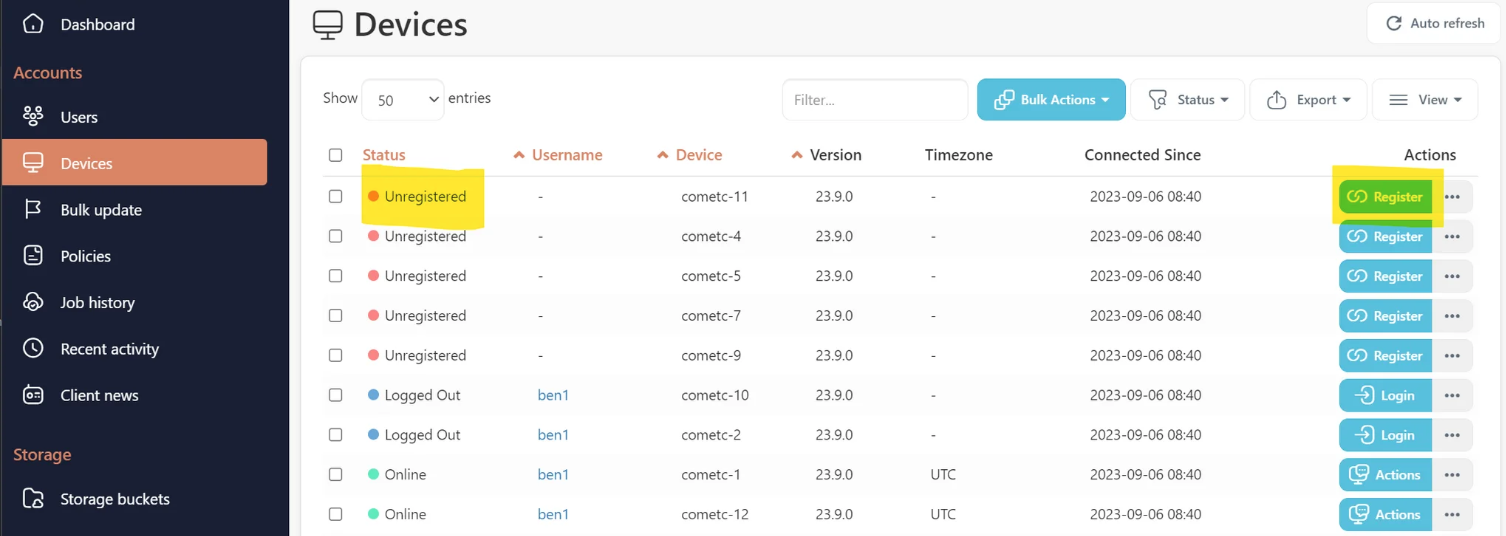
The device will appear as "Unregistered" on the Devices page of the ColoSafe Management Console. From here you can register it to a User Profile using the Register button on the right.
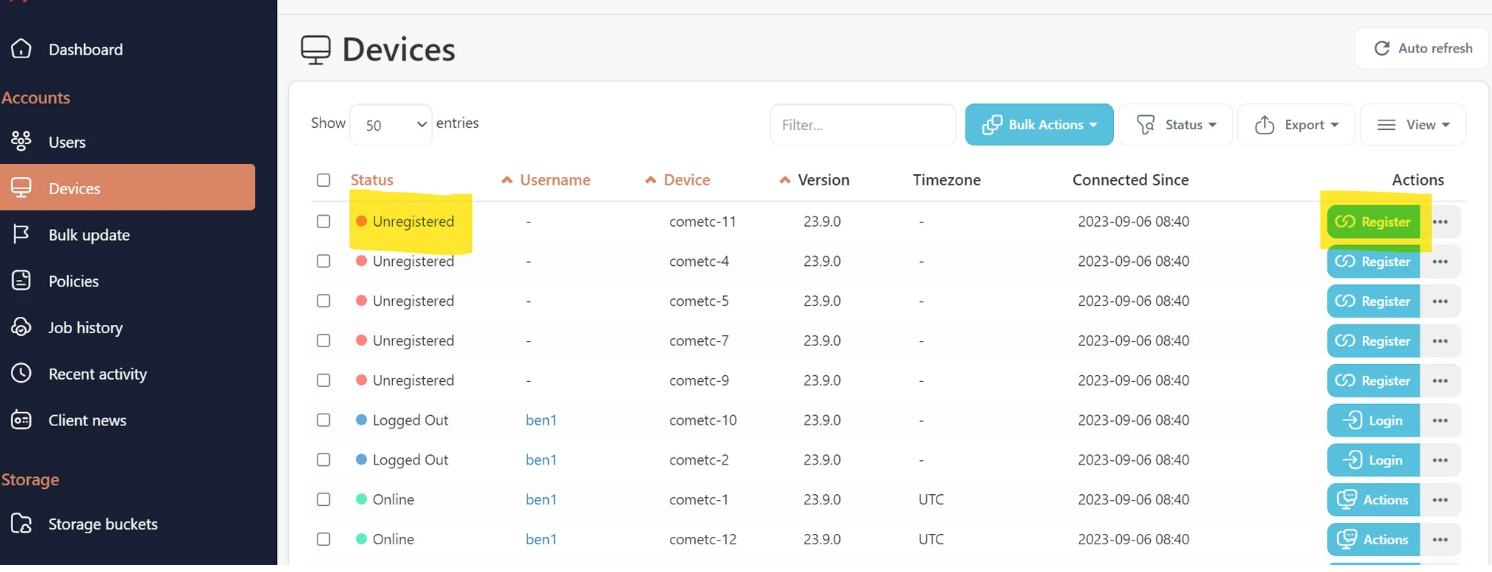
With username and passwordColoSafe allows you to install and configure the software silently, by running the following example via your remote management software. Silent installations must be started by running from the installer directory. Incorrect quotations may result in errors.
-
Command Prompt
install.exe /S /CONFIGURE=user:password -
PowerShell
Start-Process -Wait .\install.exe -ArgumentList "/S /CONFIGURE=user:password"
If you make a mistake with the username/password prompt, you can run the cd "C:\Program Files\ColoSafe Backup"; echo "USER`nPASSWORD" | .\backup-tool.exe login prompt PowerShell command to re-enter login details. Please take care with the `n character separating the username and password.
With install token (passwordless)ColoSafe also allows you to install the software and register the device silently, by running the following example via your remote management software. Silent installations must be started by running from the installer directory.
-
Command Prompt
install.exe /S /TOKEN=installtoken -
PowerShell
Start-Process -Wait .\install.exe -ArgumentList "/S /TOKEN=installtoken"
You can generate the installation token by calling API AdminCreateInstallTokenand the token is for a single use only. It can be used to hide the username and password from the command-line parameters.
Other optional arguments
Disable shortcutsColoSafe allows you to disable the software shortcuts for the silent installation, by adding command-line argument /SHORTCUT=disable. For example, if you want to install with token while no shortcuts are created, you can run the following command-line,
-
Command Prompt
install.exe /S /TOKEN=installtoken /SHORTCUT=disable -
PowerShell
Start-Process -Wait .\install.exe -ArgumentList "/S /TOKEN=installtoken /SHORTCUT=disable"
Disable tray iconColoSafe allows you to disable the tray icon for the silent installation, by adding command-line argument /TRAYICON=disable.
Log on
backup.delegate
service as Local System accountColoSafe allows you to explicitly set backup.delegate service to log on as Local System account for the silent installation, by adding command-line argument /ISLOCALSYSTEM=yes
Set target login serverColoSafe allows you to set the target login URL for the ColoSafe Management Console, by adding command-line argument /SERVER="https://example.com".
-
Command Prompt
install.exe /S /CONFIGURE=user:password /SERVER="https://example.com" -
PowerShell
Start-Process -Wait .\install.exe -ArgumentList "/S /CONFIGURE=user:password /SERVER=`"https://example.com`"
RMM Deployment Example Scripts
Example scripts to deploy the client software in bulk with remote management software.
Windows/PowerShell
$dlPath = "C:\TEMP"
$serverURL = "https://example.com"
if (-not (Test-Path $dlPath)) {
mkdir $dlPath
}
Set-Location $dlPath
Invoke-WebRequest -Uri "$($serverURL)/dl/2" -OutFile install.exe
Start-Process -Wait .\install.exe -ArgumentList "/S /LOBBY /SERVER='$($serverURL)/'"
Remove-Item -Path ".\install.exe"
MacOS/Bash
#!/bin/bash
SERVERURL=https://example.com
REBRANDEDNAME="ColoSafe Backup"
INSTALLERNAME=ColoSafeBackup.pkg
curl -o /private/tmp/ColoSafeBackup.pkg "$SERVERURL/dl/8"
sudo /usr/sbin/installer -allowUntrusted -pkg "/private/tmp/$INSTALLERNAME" -target /
/Applications/$REBRANDEDNAME.app/Contents/MacOS/backup-tool login join-lobby $SERVERURL/
rm "/private/tmp/$INSTALLERNAME"
Service account
ColoSafe automatically creates a Virtual Account (NT SERVICE\backup.delegate) with all necessary permissions to back up files on the PC.
Isolating ColoSafe Backup under a Virtual Account is supported on Windows 7 or later, and Windows Server 2008 R2 or later when that server is not a Domain Controller. On other machines (e.g. Windows Server 2008 RTM, and domain controllers) the backup service will run as LOCAL SYSTEM by default.
On a Domain Controller running Windows Server 2008 R2 or later, we recommend configuring a Managed Service Account inside Active Directory for the backup service. This allows you to isolate the backup service permissions in a password-less service account. You should apply this to the backup.delegate service (but not the backup.elevator service, used for software updates).
Upgrading
The installer will safely remove and upgrade any prior version of ColoSafe Backup, including those with a different software branding.
If the product name is changed as a result of the installation process, the newly-branded software may be installed into the old-branded directory name. You can avoid this issue by completely uninstalling and reinstalling the software.
Silent upgrade (advanced)
You can silently upgrade the software remotely via the ColoSafe Management Console interface, or by running install.exe /S via your remote management software.
Service account
If you customize the backup.delegate service to use any other user account, your changes will be preserved in any future software upgrade.
Uninstall
The software can be uninstalled via the "Apps and Features" section in the Windows Control Panel.
During this process, you may be prompted whether you wish to preserve any username/password credentials saved on this computer.
In ColoSafe 21.9.10 and later, you can also remove the saved credentials manually by running the backup-tool.exe login disconnect command.
Silent uninstallation
You can silently uninstall ColoSafe Backup for Windows by passing the /S command-line argument (e.g. "C:\Program Files\ColoSafe Backup\Uninstall.exe" /S ).
If you also want to remove the saved username/password credentials, add this command-line "C:\Program Files\ColoSafe Backup\Uninstall.exe" /S /ISDELETECREDENTIAL=yes
macOS
System Requirements
|
Specification |
Minimum |
Recommended |
|
CPU |
x86-64 or Apple Silicon processor (minimum 4 cores/threads) |
Apple Silicon processor (8 cores/threads or more) |
|
RAM 1 |
8 GB |
16 GB |
|
OS |
macOS 10.13 "High Sierra" |
macOS 14 "Sonoma" |
|
Hard Drive |
|
SSD or NVME Drive |
|
Network 2 |
1 Mbps or faster download/upload speed |
1 Gbps or faster download/upload speed. |
1 ColoSafe does not consume 8GB of RAM. Memory consumption varies depending on the job being run.
2 Links with high latency or unstable WAN connections are not recommended, as these impact both upload and download performance.
-
macOS 10.13 "High Sierra" or later is supported on the latest versions of ColoSafe. For older macOS versions the latest supported releases are:
|
macOS Version |
Last Supported Voyager Release |
Last Supported Quarterly Release |
|
OS X 10.9 "Mavericks" |
ColoSafe 19.12.1 |
ColoSafe 19.11.x series |
|
OS X 10.10 "Yosemite" |
ColoSafe 22.9.0 |
ColoSafe 22.8.x series |
|
OS X 10.11 "El Capitan" |
ColoSafe 23.6.2 |
ColoSafe 23.5.x series |
|
macOS 10.12 "Sierra" |
ColoSafe 23.6.2 |
ColoSafe 23.5.x series |
-
macOS 10.12.1 is required for Let's Encrypt's ISRG Root X1
-
macOS 11.0 is required for Apple silicon
Installation
The macOS operating system requires codesigning to be enabled in order to launch a downloaded .pkg file. If you have not configured codesigning for macOS, you will be unable to launch the installer. However, you can bypass this by right-clicking the .pkg file and choosing Open.
Run the ColoSafe Backup.pkg file and follow the prompts.
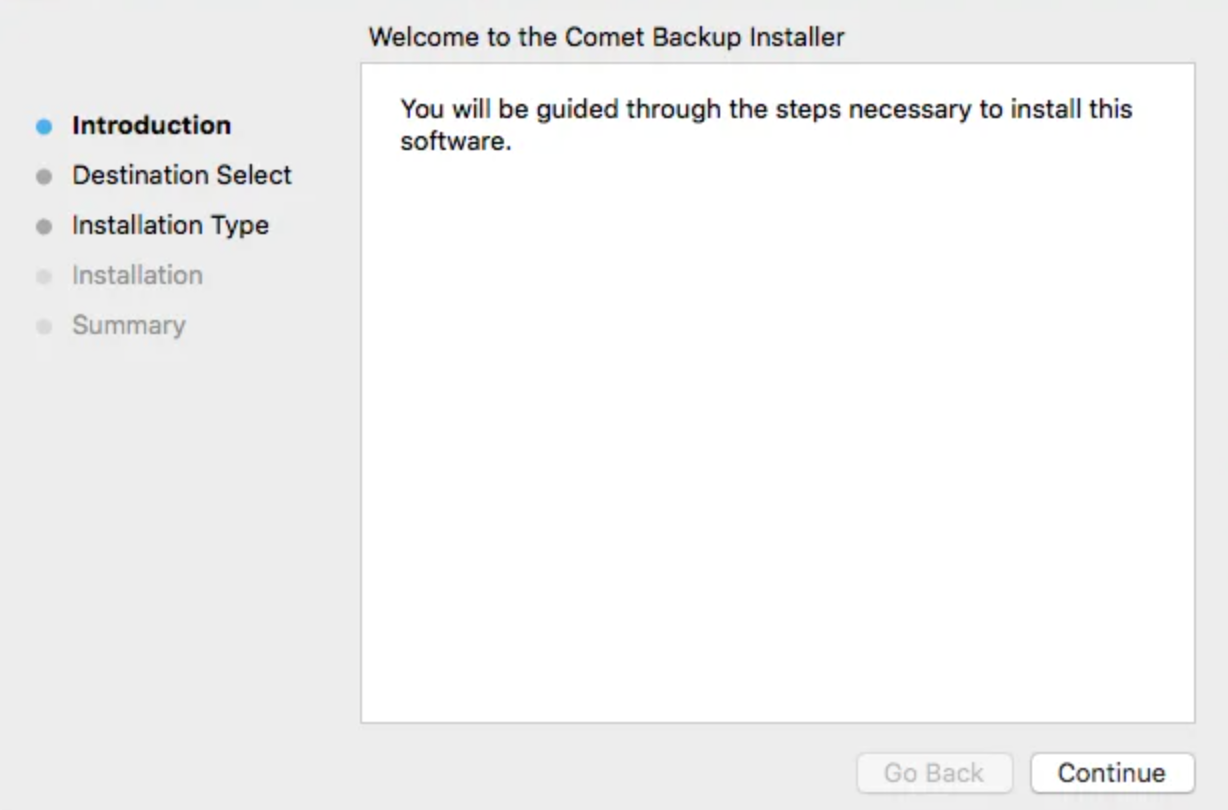
Once installed, the client software prompts for account details to log in.
If you are running the .pkg file from the Downloads directory, macOS will offer to move the .pkg file to the Trash after a successful installation.
Silent Installation (macOS Advanced)
Remote registration requires ColoSafe 23.9.0 or later.
With remote registration (lobby mode)
By running the following script via your remote management software, you can remotely register/assign the devices to a User Profile, right from the ColoSafe Management Console.
# Silently install the client software -
sudo /usr/sbin/installer -allowUntrusted -pkg "ColoSafe Backup.pkg" -target /
# Join the remote registration lobby -
# This is not a persistent connection and will NOT auto reconnect after a client restart
"/Applications/ColoSafe Backup.app/Contents/MacOS/backup-tool" login join-lobby "https://<my-ColoSafe-server>.com/"
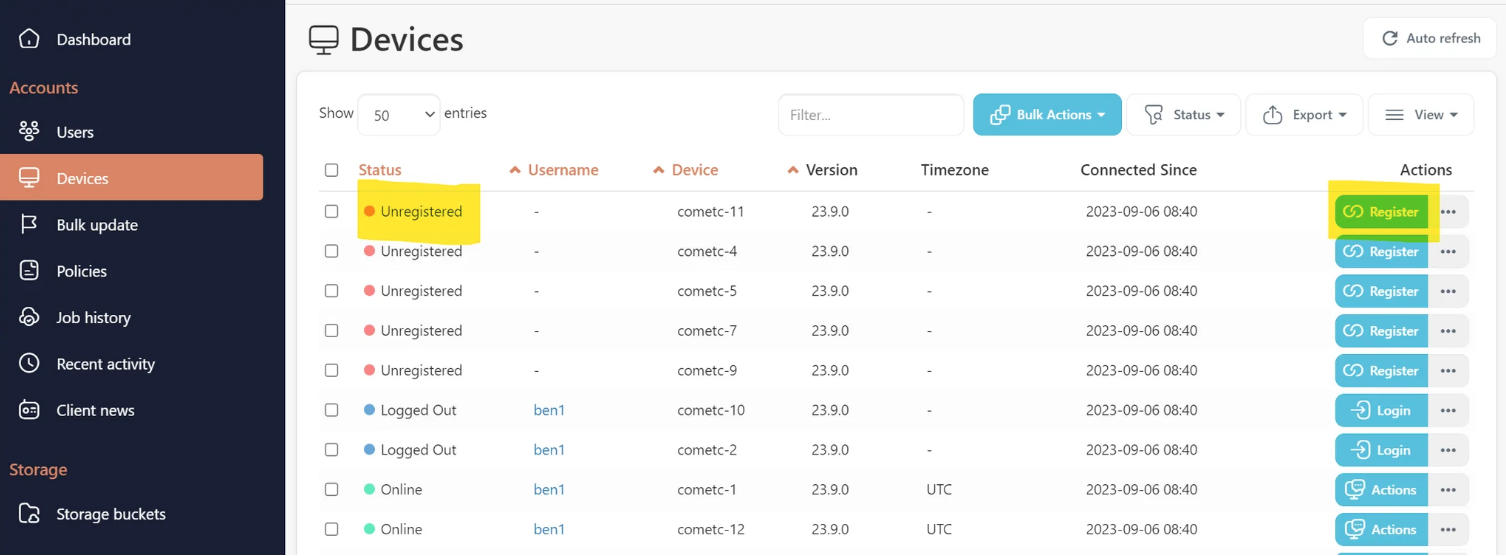
The device will appear as "Unregistered" on the Devices page of the ColoSafe Management Console admin web interface. From here you can register it to a User Profile using the Register button on the right.
With username and password
By running the following script via your remote management software, you can silently register a macOS deivce to static User Profile.
NOTE: This does require the user (not admin) password to be plaintext on the client. We recommend using remote registration (lobby mode) to avoid this
PKG_NAME="ColoSafe Backup"
ColoSafe_HOST="https://<my-ColoSafe-server>.com/"
ColoSafe_USERNAME="test_ColoSafe"
ColoSafe_PASSWORD="<password>"
INSTALLER_PATH="$PKG_NAME.pkg"
BACKUP_TOOL_PATH="/Applications/$PKG_NAME.app/Contents/MacOS/backup-tool"
sudo /usr/sbin/installer -allowUntrusted -pkg "$INSTALLER_PATH" -target /
(
echo "$ColoSafe_USERNAME";
echo "$ColoSafe_PASSWORD";
) | OVERRIDE_INSTALL_SERVER="$ColoSafe_HOST" "$BACKUP_TOOL_PATH" login prompt
Silently granting Full Disk Access permission
macOS 10.14 Mojave and later have added a requirement to grant the "Full Disk Access" permission. macOS does not allow programs to set this permission automatically and it cannot be set as part of the silent install with the above instructions.
However, if you are intending to use the silent install feature via an RMM software that acts as the device's MDM (e.g. Jamf / Addigy / Meraki Systems Manager / ...) then you can set a Privacy Preferences Policy Control (PPPC)that remotely enables the "Full Disk Access" option for ColoSafe Backup's application ID. The application ID for ColoSafe Backup can be customized via your ColoSafe Management Console as part of the macOS client branding settings.
Upgrading
The installer will safely remove and upgrade any prior versions of ColoSafe Backup, including those with a different software branding.
Silent upgrade (advanced)
You can silently upgrade the software remotely via the ColoSafe Management Console interface, or by running /usr/sbin/installer -allowUntrusted -pkg "ColoSafe Backup.pkg" -target / via your remote management software.
Uninstallation
macOS does not have a standard system for uninstalling programs. However, you can still uninstall ColoSafe by running the following command from a terminal window:
sudo -u root "/Applications/ColoSafe
Backup.app/Contents/Resources/uninstall"
This will automatically stop all running ColoSafe processes, unregister ColoSafe's launchd services, and remove all application files from the disk.
Uninstalling the software preserves any username/password credentials saved on this computer. If you also want to remove the saved username/password credentials, add this command-line:
sudo -u root "/Applications/ColoSafe
Backup.app/Contents/Resources/uninstall"
--also-remove-saved-passwords
In ColoSafe 21.9.10 and later, you can also remove the saved credentials manually prior to uninstallation by running the /Applications/ColoSafe Backup.app/Contents/MacOS/backup-tool login disconnect command.
Linux (Debian, Ubuntu)
This feature requires ColoSafe 23.12.5 or later.
Install ColoSafe Backup using the Debian client package. The Debian package installs the ColoSafe client binaries and a systemd unit script to start and stop the service. The installed service is named backup-tool.
Installation
Install the package using apt install in the directory where the .deb file was downloaded. E.g.:
sudo apt install ./ColoSafe_Backup-23.12.5.deb
The installer will
-
Install the software into a branded /opt/BRANDNAME/ subdirectory
-
Prompt you for an initial username and password (if previous configuration was not found)
-
Prompt you for the URL of the ColoSafe Management Console to attach to
-
Register the current Linux device using the provided ColoSafe user account details
-
Start running ColoSafe Backup in the background.
Managing the Service
The ColoSafe service is installed with the name backup-tool. It can be managed using the standard systemctl commands. See this Red Hat articlefor reference.
Silent install (Debian package)
The deb package installer prompts for your login details using Debconf. For a silent install experience, you can pre-seed answers to the install questions by using debconf-set-selections.
Package compatibility
You can install the .deb package over the top of an existing ColoSafe Backup installation that used the "Other distribution" (.run) package. The .deb installer will detect the existing installation and convert the settings appropriately.
If you install the "Other distribution" (.run) package over the top of an existing .deb install, ColoSafe 23.12.5 or later will understand the previous .deb package and perform a safe conversion. Installing an earlier version of the .run package will result in a mixed installation. To avoid this, ensure to safely uninstall the .deb package first.
Uninstall
You can uninstall the package by running apt remove backup-tool.
By default, removing the package will preserve your saved credentials for future reinstall. To forget any saved configuration, run apt purge backup-tool. This command will also uninstall the package if it is still installed.
Linux (Red Hat Enterprise Linux (RHEL), CentOS)
Install ColoSafe Backup using the "Other distribution" package.
Linux NAS (Synology)
Since ColoSafe 21.12.6, branded Synology SPKs can be generated and downloaded from the ColoSafe Management Console. ColoSafe offers two downloads for Synology: one for DSM 6 and one for DSM 7. Due to Synology packaging rules, these SPKs are not interchangeable.
SPKs are available for Synology NAS' which meet the following requirements:
-
CPU: x86_64, i686, ARMv7, or ARMv8
-
DSM version: 6 or 7
The Synology SPK does not include a graphical client. Instead, creating Protected Items and running backups and restores can be done from your ColoSafe Management Console
Installation
DSM 6 only:Installation of packages published by any publisher must be allowed before ColoSafe can be installed. This setting can be enabled from the Package Center; in Settings > General > Trust Level, select the "Any publisher" radio button and accept the settings.
Installation of ColoSafe on a Synology NAS follows the same process as installing any other SPK:
-
Open the Package Center
-
If on DSM 6, ensure the settings noted above have been applied.
-
Click "Manual Install" in the top right
-
Upload the .spk file downloaded from the ColoSafe Management Console
-
If on DSM 7, accept the prompt to allow the installation of a third-party package.
-
Accept the license agreement
-
Enter credentials the appropriate ColoSafe Management Console and user
-
If a previous version of ColoSafe has been installed on the NAS and its settings were not removed when it was uninstalled, the installer will automatically detect the credentials. Leaving all fields blank will reuse the existing credentials; new credentials can also be entered as usual and will take precedence.
-
Click "Apply" to complete the installation
Permissions
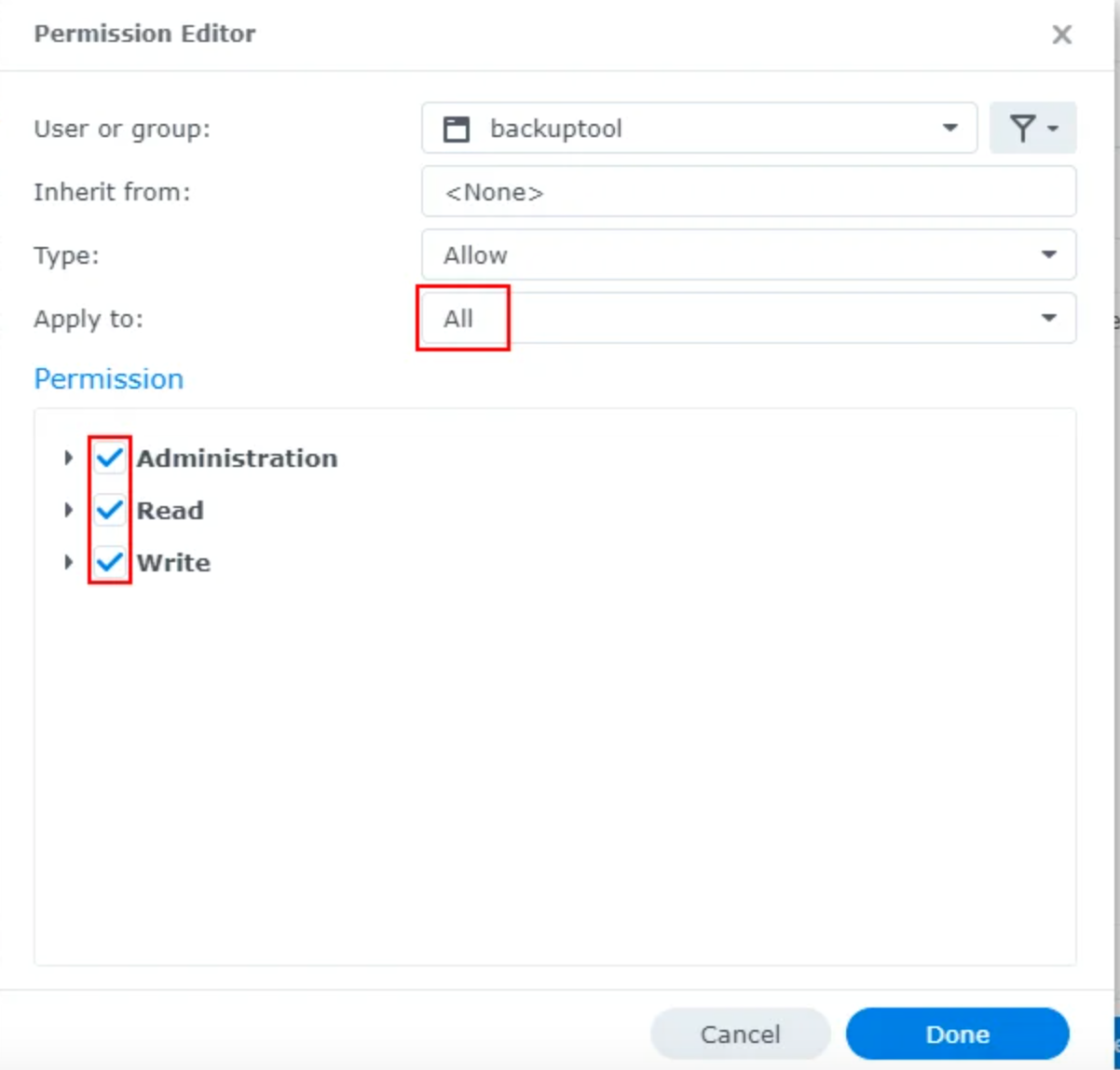
On DSM 7, ColoSafe runs a special package-specific user named backuptool. In order to perform backups and restores, this user must be granted permissions to access the appropriate Shared Folders.
This does not apply to DSM 6.
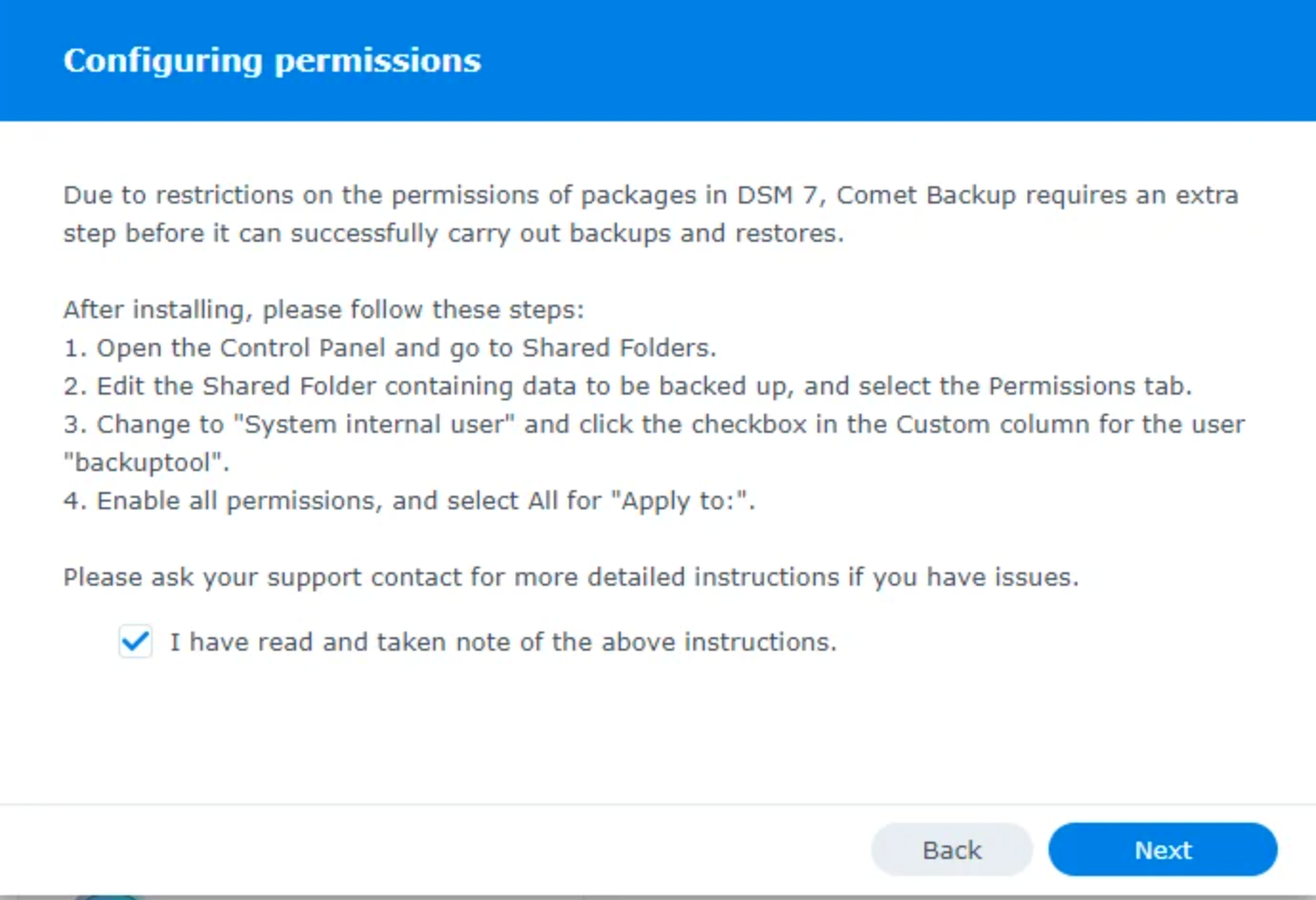
-
Log in to the Synology NAS
-
Open the Control Panel and go to Shared Folders
-
Select the Shared Folder containing the data to be backed up and click Edit
-
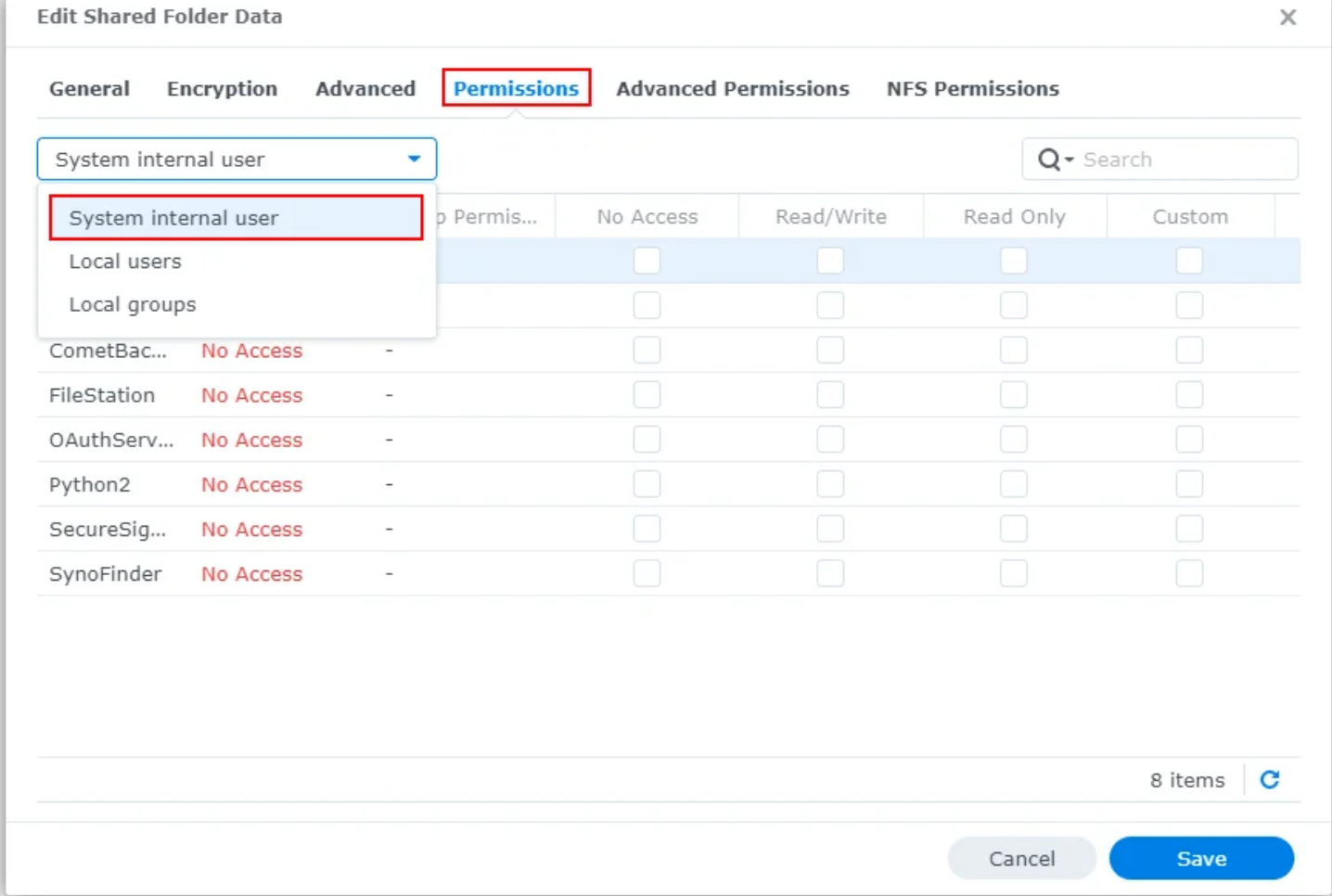
In the Permissions tab, select "System internal user" from the dropdown menu on the left
-
For the user backuptool, click the checkbox in the Custom column
-
In the dialog that appears, ensure the following:
-
"Apply to:" is set to "All"
-
All permissions are checked
Limitations
Due to restrictions placed on packages by Synology for DSM 7, ColoSafe runs as a special package-specific user, which results in some limitations:
-
Remote upgrade/uninstall is not supported. This is because third-party SPKs are no longer allowed to run as root, which means ColoSafe cannot initiate a package upgrade/uninstall from within a package itself. To upgrade, install the new version manually in place of the old version.
-
When performing a restore to a Synology NAS, permissions/ownership may not be restored correctly. This is because a package user is not allowed to chown to a user other than themselves.
After installation
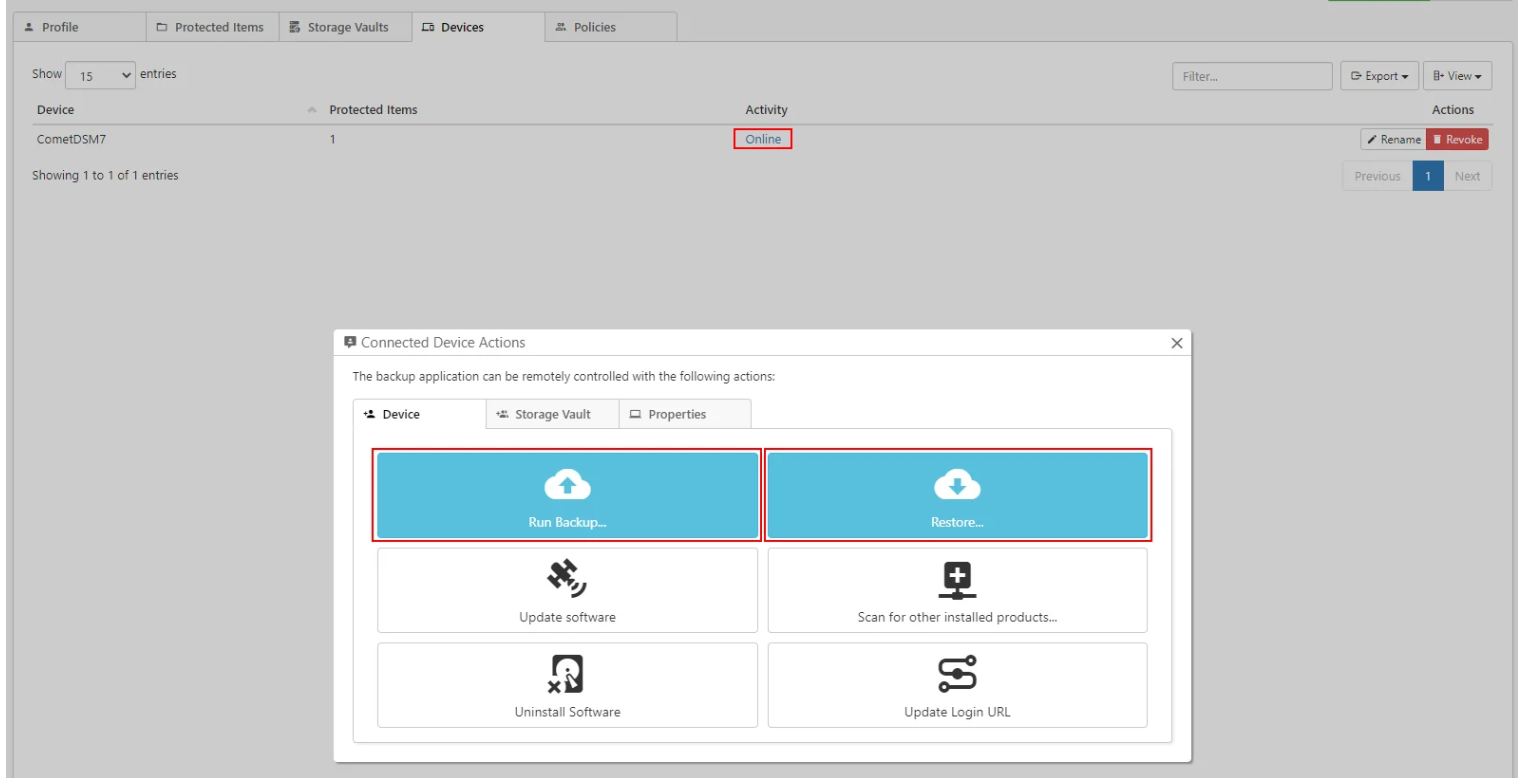
The Synology SPK does not provide a graphical client for ColoSafe. Creating Protected Items and manually running backups or restores is done from the ColoSafe Management Console
Creating a Protected Item can be done from the Protected Items tab on the user's page:

Backups and restores can be run by selecting the connection to the online Synology device from the Devices tab on the user's page:
Video
Hereis a video tutorial showing the steps to download the ColoSafe Synology installer, and walks you through installation and how to configure a backup and restore from the ColoSafe Management Console.
Linux (Other NAS)
Install ColoSafe Backup using the "Other distribution" package.
Linux (Other Distribution)
This is a distribution-agnostic package that can be used if ColoSafe does not have a more specific package available for your Linux distribution.
Please note that in order to avoid distribution-specific differences, the package does not automatically start on boot. You should configure your system to run the launch script in /opt/ on boot (e.g. via a systemd unit, upstart script, /etc/init.d/ script, or a line in init.rc).
System Requirements
|
Specification |
Minimum |
Recommended |
|
CPU |
x86 with SSE2 and SSSE3 1, x86-64 or ARM processor (minimum 4 cores/threads) |
x86-64 or ARM processor (8 cores/threads or more) |
|
RAM 2 |
8 GB |
16 GB |
|
OS |
Kernel 2.6.23 or later |
Kernel 5.0 or later |
|
Hard Drive |
|
SSD or NVME Drive |
|
Network 3 |
1 Mbps or faster download/upload speed |
1 Gbps or faster download/upload speed. |
1 SSSE3 required as of version 24.12.0 - Intel Core 2 Duo, AMD Bulldozer or newer.
2 ColoSafe does not consume 8GB of RAM. Memory consumption varies depending on the job being run.
3 Links with high latency or unstable WAN connections are not recommended, as these impact both upload and download performance.
Additional Requirements
-
Support for ISRG root X1 certificates for Let's Encrypt requirements
-
Unique SSH host keys
-
Dependencies
-
bash, xz,GNUawk, and standard GNU/Linux system utilities -
ca-certificates and tzdata(see below)
ARM CPU support
ColoSafe Backup is available for multiple ARM platform variants. The ColoSafe Backup installer will select the best available binary for your hardware at install-time.
The following platform variants are supported:
|
Platform |
Description |
|
ARMv8l |
ARM 64-bit (Aarch64), no glibc required |
|
ARMv7l |
ARM 32-bit with vfp, and a glibc-based OS with the "hard-float" ABI (gnueabihf) |
|
ARMv6kl |
ARM 32-bit with vfp, no glibc required |
Timezone database dependency
ColoSafe Backup on Linux requires the OS to provide an up-to-date timezone database, to perform timezone calculations
-
On many Linux distributions, installing the tzdata or timezone package should be sufficient
-
Otherwise, ColoSafe will look for a timezone database in all of the following locations;
-
/usr/share/zoneinfo
-
/usr/share/lib/zoneinfo
-
/usr/lib/locale/TZ
CA certificate database dependency
ColoSafe Backup on Linux requires the OS to provide an up-to-date set of root certificate authorities, to validate HTTPS / SSL connections.
-
On many Linux distributions, installing the
ca-certificatespackage should be sufficient -
Otherwise, ColoSafe will look for a certificate bundle in all of the following locations;
-
/etc/ssl/certs/ca-certificates.crt(used by Debian/Ubuntu/Gentoo etc.) -
/etc/pki/tls/certs/ca-bundle.crt(used by Fedora/RHEL 6) -
/etc/ssl/ca-bundle.pem(used by OpenSUSE) -
/etc/pki/tls/cacert.pem(used by OpenELEC) -
/etc/pki/ca-trust/extracted/pem/tls-ca-bundle.pem(used by CentOS/RHEL 7)
Installation
Run the .run file. This is a self-extracting archive, and will need to be executed in an elevated environment.
The installer will
-
install the software into a branded
/opt/BRANDNAME/subdirectory -
prompt you for an initial username and password
-
register the current Linux device into that ColoSafe account
-
start running ColoSafe Backup in the background.
If you make a mistake with the username/password prompt, you can run the /opt/BRANDNAME/backup-tool login prompt command to re-enter login details.
Prior to ColoSafe 21.9.10, if you make a mistake with the username/password prompt should follow the instructions below to completely remove the software, and then start the installation again.
Linux Installation options
You can control the installer by setting environment variables in your shell before running the .run file.
The following options are available:
-
WRITE_INSTALL_LOG.Set this to a file path, to record details of the installation. -
OVERRIDE_INSTALL_SERVER.Set this to a URL (including http/https and trailing slash) to override the ColoSafe Management Console URL used by ColoSafe Backup.
You can set an environment variable in bash either on the same line (e.g. WRITE_INSTALL_LOG=install.log ./ColoSafe_Backup-xx.x.x.run) or as a separate export command (e.g. export WRITE_INSTALL_LOG=install.log followed by ./ColoSafe_Backup-xx.x.x.run ).
Silent installation (Linux advanced)
Remote registration required ColoSafe 23.9.0 or later.
With remote registration (lobby mode)
By running the following script via your remote management software, you can remotely register/assign the devices to a User Profile, right from the ColoSafe Management Console.
./ColoSafe_Backup-xx.x.x.run --lobby
You can also silently rejoin the lobby, or configure a different ColoSafe Management Console, using the following command: /opt/BRANDNAME/backup-tool login join-lobby [server-url]
The device will appear as "Unregistered" on the Devices page of the ColoSafe Management Console admin web interface. From here you can register it to a User Profile using the Register button on the right.
With username and password
ColoSafe allows you to install and configure the software silently. This allows you to remotely push client installations remotely, using your preferred remote management software.
To run the installer silently, run:
-
export ColoSafe_USERNAME=xxxx -
export ColoSafe_PASSWORD=xxxx -
(echo $ColoSafe_USERNAME; echo $ColoSafe_PASSWORD;) | ./ColoSafe_Backup-xx.x.x.run
NOTE: ColoSafe_USERNAME and ColoSafe_PASSWORD are for the user profile, not the ColoSafe Management Console administrator.
You can also silently reconfigure the software using the same pipe syntax: (echo $ColoSafe_USERNAME; echo $ColoSafe_PASSWORD;) | /opt/BRANDNAME/backup-tool login prompt
Restarting at boot
The installer creates a backup-daemon-start.sh script that can start the service. The ColoSafe Backup agent on "Other Distribution" Linux can be restarted by running the backup-daemon-start.sh script.
In order for ColoSafe Backup to start after a system reboot, you must configure this script to be run on system boot. Different Linux distributions support different methods for running commands on system boot: choose the most appropriate method for your Linux distribution. Some common choices are documented below.
Preserve HOME environment variable
ColoSafe uses the $HOME environment variable to find its saved credentials. When configuring ColoSafe to start at system boot, ensure that the $HOME environment variable is set (i.e. to /root/), to ensure that ColoSafe can find its saved credentials. If ColoSafe is unable to log in, it's possible that your Linux distribution does not set $HOME at this early-boot stage. In that case, you should try running HOME=/root/ /opt/ColoSafeBackup/backup-daemon-start.sh & instead. ColoSafe will automatically try to use /root/as the $HOME directory if $HOME is not already set or if it is set to a blank path.
Note: If you execute the .run installation script as root, this may have different results than if you execute the .run script using an elevated terminal session with 'sudo'. The 'sudo' command preserves the $HOME variable on Ubuntu; whilst on Debian the $HOME variable is erased, and sudo then sets it to the home directory of the originating user.
Start in the background
If you are running commands over SSH, please be aware that the backup-daemon-start.sh script runs in the foreground and will die when the SSH session is closed. You can avoid this by running the script in the background.
You can run the script in the background (daemonize) by using the backup-daemon-start-background.sh file instead.
Startup via rc.local
You can make ColoSafe Backup start at system boot by adding an entry to the rc.local file.
First, find the rc.local file on your system:
-
/etc/rc.local(Debian/Ubuntu) -
/etc/rc.d/rc.local (CentOS/RHEL)
Add the following content to the rc.local file:
/opt/ColoSafeBackup/backup-daemon-start.sh &
If the rc.local file contains an exit 0 statement, the additional command should be added
beforesuch a statement.
As of CentOS 7, the rc.local file is not executable by default. You should run chmod +x on the rc.local file to enable using this method for startup scripts.
Startup via rc.d
You can make ColoSafe Backup start at system boot by adding a file to the rc.d directory.
First, find the rc.d directory on your system:
-
/usr/local/etc/rc.d(Synology DSM 6.1+)
Add a new file to the rc.d directory with the following contents:
#!/bin/bash
/opt/ColoSafeBackup/backup-daemon-start-background.sh
Mark the file as executable: chmod +x /usr/local/etc/rc.d/my-ColoSafe-startup-script.sh
Startup via cron
You can make ColoSafe Backup start at system boot by adding an entry to root's crontab.
-
Run
crontab -e -u rootto launch a crontab editor -
Add the line
@reboot /opt/ColoSafeBackup/backup-daemon-start-background.sh
Startup via init.d
No further documentation is currently available for this topic.
Startup via systemd
You can use the following unit as an basic example:
[Unit]
Description=ColoSafe Backup Client
After=network-online.target
[Service]
Type=simple
RemainAfterExit=true
KillMode=process
User=root
ExecStart=/opt/ColoSafeBackup/backup-daemon-start.sh
[Install]
WantedBy=multi-user.target
This unit file correctly starts the ColoSafe Backup service at system boot.
However, the process management in systemd is not fully compatible with the way ColoSafe's multi-process model works. In particular, there are compatibility issues with the software updater. As a result, the above unit is (A) unable to take advantage of process group cleanup; (B) unable to auto-restart the ColoSafe Backup agent service; and (C) after a software upgrade, ColoSafe will keep running but the unit will remain in "exited" state.
Autostart for graphical desktop application
In the "Other Distribution" package, the graphical application is not automatically configured to start when the desktop logs in. You may add backup-interface --background as an autostart command to your desktop environment's settings.
Upgrading
The "Other Distribution" version of ColoSafe supports upgrading the software, with some caveats:
-
The .run file will automatically upgrade the existing version
-
The software can be remotely upgraded via the ColoSafe Management Console.
However, the existing service will only be replaced with the upgraded version if the product brand name is unchanged.
Note: If you delete the branded ColoSafe directory and all its contents in /opt/, this will trigger a full-reinstallation of the client software, requiring the username and password.
Uninstall
To uninstall "Other Distribution" versions of ColoSafe, you should
-
Stop all ColoSafe processes
-
Remove the relevant subdirectory under /opt/
-
Remove any custom startup scripts
Change password on Linux client
Use the 'Change Password' function in the client web interface, or change the password in the admin web interface.
Then fully uninstall and reinstall the client, using the new credential. Your device settings and Protected Items will be preserved.
Graphical desktop application for Linux
This feature is available in ColoSafe 21.3.6 and later.
By default, the ColoSafe Backup application for Linux runs on the command-line only. You can control and configure the application via the web interface.
If you have a graphical Linux desktop environment (e.g. GNOME / KDE / XFCE, using X11 / Wayland), it is optionally possible to run the ColoSafe Backup desktop application. In addition to the general Linux system requirements, use of this feature has the following additional requirements:
-
x86_64 CPU architecture
-
Qt 5.7 or later
-
Glibc 2.24 or later
These Qt and Glibc versions are present on most Linux distributions from 2017 or later, such as Ubuntu 17.04 "Zesty Zapus", Debian 9 "Stretch", Fedora 25 Workstation, CentOS 8, and any more recent Linux distribution version.
On Debian 13 "Trixie" / Ubuntu 24.04 "Noble Numbat", you may need to install the following package dependencies:
-
apt-get install libqt5widgets5t64 libqt5svg5t64
On older versions of Debian / Ubuntu, you may need to install the following package dependencies:
-
apt-get install libqt5widgets5 libqt5svg5
On Fedora/CentOS, you may need to install the following package dependencies:
-
yum install qt5-qtbase.x86_64 qt5-qtsvg.x86_64
After installing ColoSafe Backup for Linux for command-line usage, you can launch the /opt/ColoSafeBackup/backup-interface program. It is not necessary to launch this program as root; it will communicate with the installed ColoSafe Backup background service regardless of what user account it runs as.
ColoSafe Backup usage
Log in
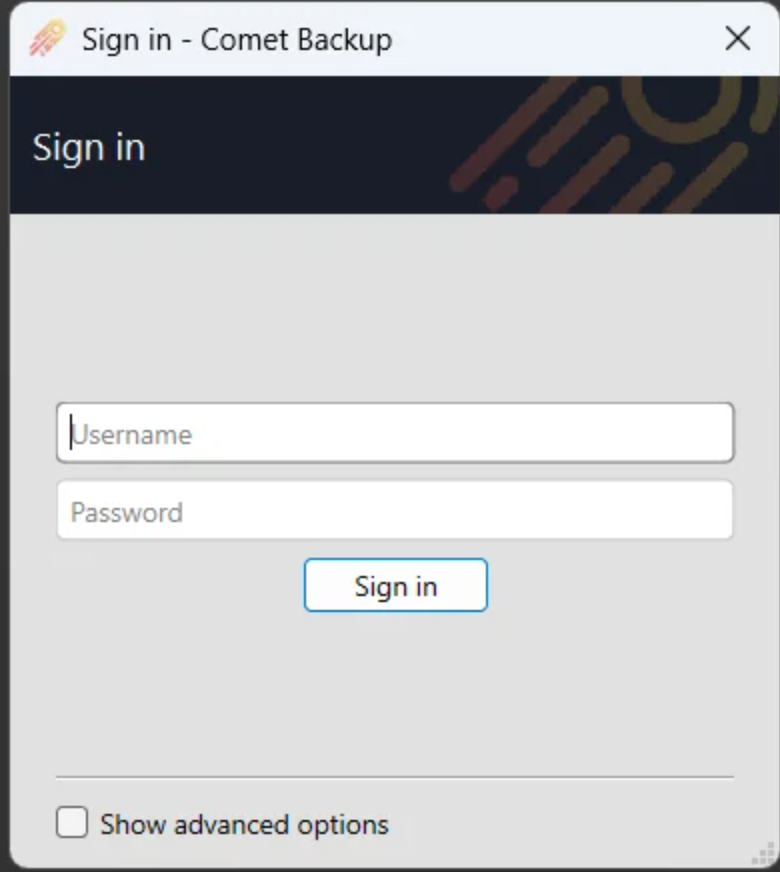
Enter the client's username and password, and click the button to log in.
Custom ColoSafe Management Console address
The server address will be automatically filled, pointing to the ColoSafe Management Console that generated the client software.
You can connect the ColoSafe Backup application to a different ColoSafe Management Console:
- Check the "Advanced Settings" option, to display the Server field
- Enter the server address.
- The address should include the protocol (http/https); any non-default port; and a trailing forward-slash (/) character.
Device registration
If this is the first time logging in to your ColoSafe Backup account from this device, you will be prompted to register the device into your account.
Backup tab
Add a new Protected Item
To add a new Protected Item, mouse over the "Protected Items" text and click the "Add" button.
For more information about configuring a Protected Item, see the "User configuration" section. No changes are applied until the Save button is pressed.
Edit an existing Protected Item
To edit an existing Storage Vault, either double-click the row, or right-click the row and choose Edit.
For more information about configuring a Protected Item, see the "User configuration" section. No changes are applied until the Save button is pressed.
Back up data
Data should be backed up automatically on schedule as per the schedule setting options above. The backup schedules will still run even if logged out of the client GUI, as the background service will stay logged in.
At times, you may wish to immediately start a backup job, or back up to a different Storage Vault than usual. You can back up any Protected Item to any Storage Vault as follows:
- Click a Protected Item, and click the Backup Now button
- Step through the wizard to select a destination Storage Vault
- The backup job starts within the main window interface.
Restore tab
Clicking the Restore tab opens the Restore dialog. Multiple actions are possible from within the Restore dialog:
Restore data
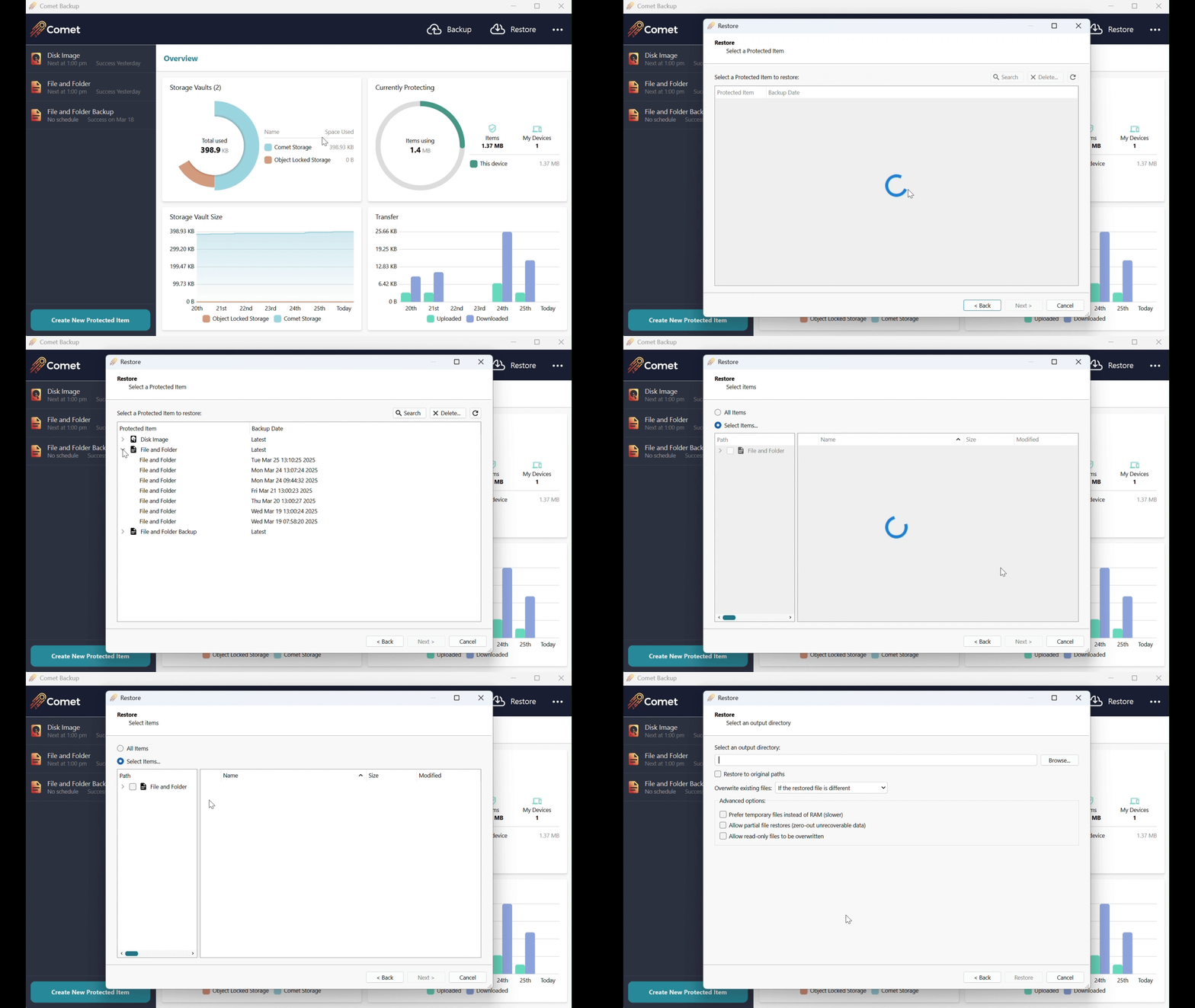
You can restore data from any Storage Vault as follows:
- Click the Restore button in the left-hand menu bar
- Select the Storage Vault containing the backed-up data, and click Next
- Select the Protected Item that you want to restore, and click Next
- (Optional) Unfold the Protected Item to pick a snapshot other than the most recent
- (Optional) Use the Search button to search for files to restore
- Select which files to restore, and click Next
- (Optional) By default, all files are restored. You can use the "Choose files" radio option to select individual files or folders to restore.
- Select the destination path to restore to, and click Next
- The restore job starts within the main window interface.
If you are restoring from a Protected Item that is known to your current device, the progress operation will appear on the Backup tab under the Protected Item in question. If you are restoring from a Protected Item that is unknown to your current device, the progress operation will appear on the Account tab under the Storage Vault in question.
Restore types
When restoring files, you can choose to restore data as:
Files and Folders
The files you selected for restore will be restored from the Storage Vault to the local hard drive in the path you have selected.
Restore location:
Custom file path
Restore to original paths
The selected files will be restored to their original on-disk locations. Only available if the necessary original path information was preserved during the backup job; this is the case for all "File and Folder"-type backup jobs.
This option is not presently available for Protected Item types other than "File and Folder" and will be greyed-out in the user interface.
Overwrite existing files:
If the restored file is different (>= 24.3.1)
Any file that already exists and has different content will be silently overwritten with the restored file.
If the restored file is newer
Any file that already exists and has an older timestamp will be silently overwritten with the restored file.
Always
Any file that already exists will be silently overwritten with the restored file.
Never (skip existing files)
Any file that already exists will be silently skipped from the restore operation.
Simulate restore only
The files you selected for restore will be downloaded from the Storage Vault, and reassembled, but not saved onto the local harddrive. This option can be useful as a test of the restore process.
Program Input
The files you selected for restore will be streamed as the standard input (stdin) to a command-line program.
If you have selected multiple files for restore, you can choose whether they will result in multiple commands being run sequentially, or if the files are virtually archived before streaming into a single command-line program.
Compressed archive file (zip / tar)
The files you selected for restore will be restored from the Storage Vault to an archive file on your local hard drive.
If you select a compressed archive format, the files will consume less space on the local disk. No spool space is required when using a compressed archive format. This may be particularly useful for restoring large, highly compressible files (e.g. SQL dumps with repeated INSERT statements, or non-sparse disk images containing zero extents).
The following file formats are available:
- zip (compressed)
- tar (uncompressed) - The tar file format has had many different specifications, from V7 (1979), oldgnu (1992), GNU (1997), USTAR/POSIX (1998), to PAX/POSIX (2001). ColoSafe uses POSIX 1003.1-2001 (pax) TAR format files to preserve fidelity of file metadata. If your tar program does not fully support PAX extensions, you may see a hidden PaxHeader.0 directory.
- tar.gz (compressed)
- tar.zst (compressed) - This option uses the Zstd compression algorithm to provide better performance and compression ratio than a traditional tar.gz file.
- sqfs (compressed) - SquashFS is a compressed archive file that can be mounted as a read-only virtual drive, using mount on Linux. This allows you to work with the compressed data while only requiring a low amount of physical disk space. Third-party programs are available for Windows to allow mounting zip files as virtual drives for a similar effect
- Granular restore (Disk Image, Hyper-V, VMware only) - If you are restoring a Protected Item that contains virtual disk files, choose this option to extract individual files from the disk's filesystem.
- MySQL (MySQL only) - If you are restoring a MySQL Protected Item, choose this option to stream the restore data directly back into a MySQL server. The connection settings will be prefilled from your current Protected Item settings, if any.
- Microsoft SQL Server (Microsoft SQL Server only) - If you are restoring a Microsoft SQL Server Protected Item, choose this option to stream the restore data directly back into a Microsoft SQL Server instance. The connection settings will be prefilled from your current Protected Item settings, if any.
- Office 365 (Office 365 only) - If you are restoring an Office 365 Protected Item, choose this option to restore emails back to the cloud instead of local files.
- Disk Image restore (Disk Image only) - Choose this option to restore disk image data directly back to physical disks.
- Disk Image format conversion (Disk Image only) - ColoSafe's Disk Image Protected Item type backs up your physical disks and partitions using the vmdk file format. Additional options are available to transform the file format to Hyper-V compatible vhdx files or VMware ESXi-compatible vmdk files.
- Hyper-V (Disk Image, Hyper-V, VMware only) (>=25.2.0) - Choose this option to restore VMs from the backup job directly into the local Hyper-V instance. As part of the restore process, format conversion may occur. VMware and Disk Image Protected Items will automatically undergo format conversion to Hyper-V's vhdx file format. Hyper-V avhdx chains will be flattened into a single vhdx file. Checkpoints are not restored when using this option. You will be prompted to enter a local path for the resulting vhdx files to be restored into. If you have previously created Hyper-V VMs using Hyper-V Manager, the default path is often
C:\Users\Public\Documents\Hyper-V\Virtual Hard Disks. The restored VMs will be registered as new VMs. Depending on the original backup, they may be Generation 1 (BIOS) or Generation 2 (UEFI). - VMware (Disk Image, Hyper-V, VMware only) (>=25.2.0) - Choose this option to restore VMs from the backup job directly into a network-accessible VMware vSphere hypervisor. Both ESXi and vSphere are supported targets for restore. As part of the restore process, Hyper-V and Disk Image Protected Items will automatically undergo format conversion to VMware's vmdk file format. If the backup job was originally a VMware Protected Item, the connection settings will be prefilled from your current Protected Item settings. As well as the connection settings, you must select a Datacenter, Host, Datastore, and Network for the newly created VMs. You can use the Browse button to select these resources from the connection. For each of these settings, if there is only one possible option, it will be chosen automatically.
Remove a single backup snapshot
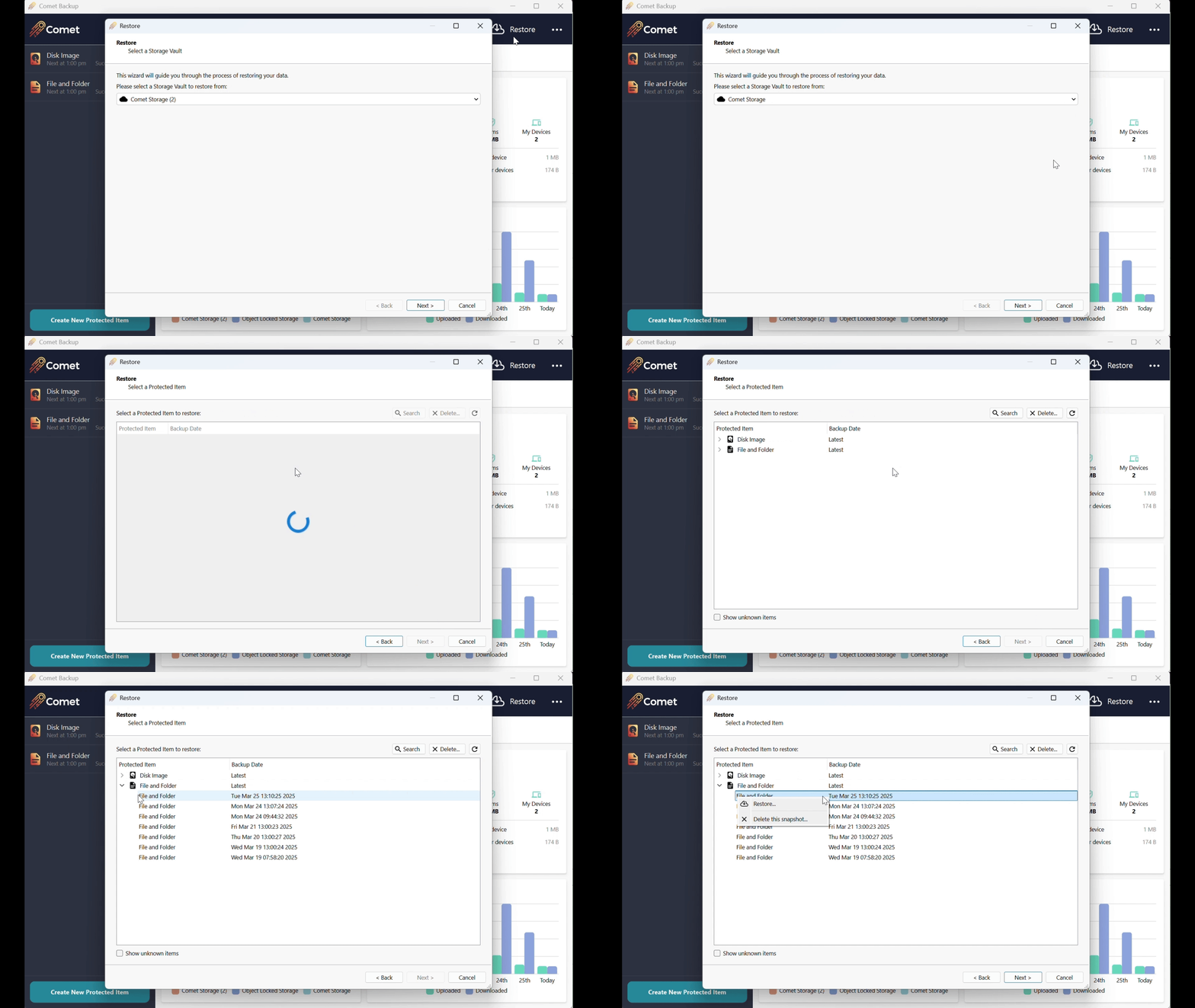
You can remove a single snapshot from within a Storage Vault as follows:
- Click the Restore button in the left-hand menu bar
- Select the Storage Vault containing the backed-up data, and click Next
- Identify the Protected Item snapshot that you want to remove from the Storage Vault, expanding the selection as necessary
- Right click the Protected Item snapshot, and select "Delete this snapshot"
ColoSafe will remove the snapshot from the Storage Vault, and then immediately clean up unused data within the Storage Vault to save on disk space.
Restore a Protected Item from a different device
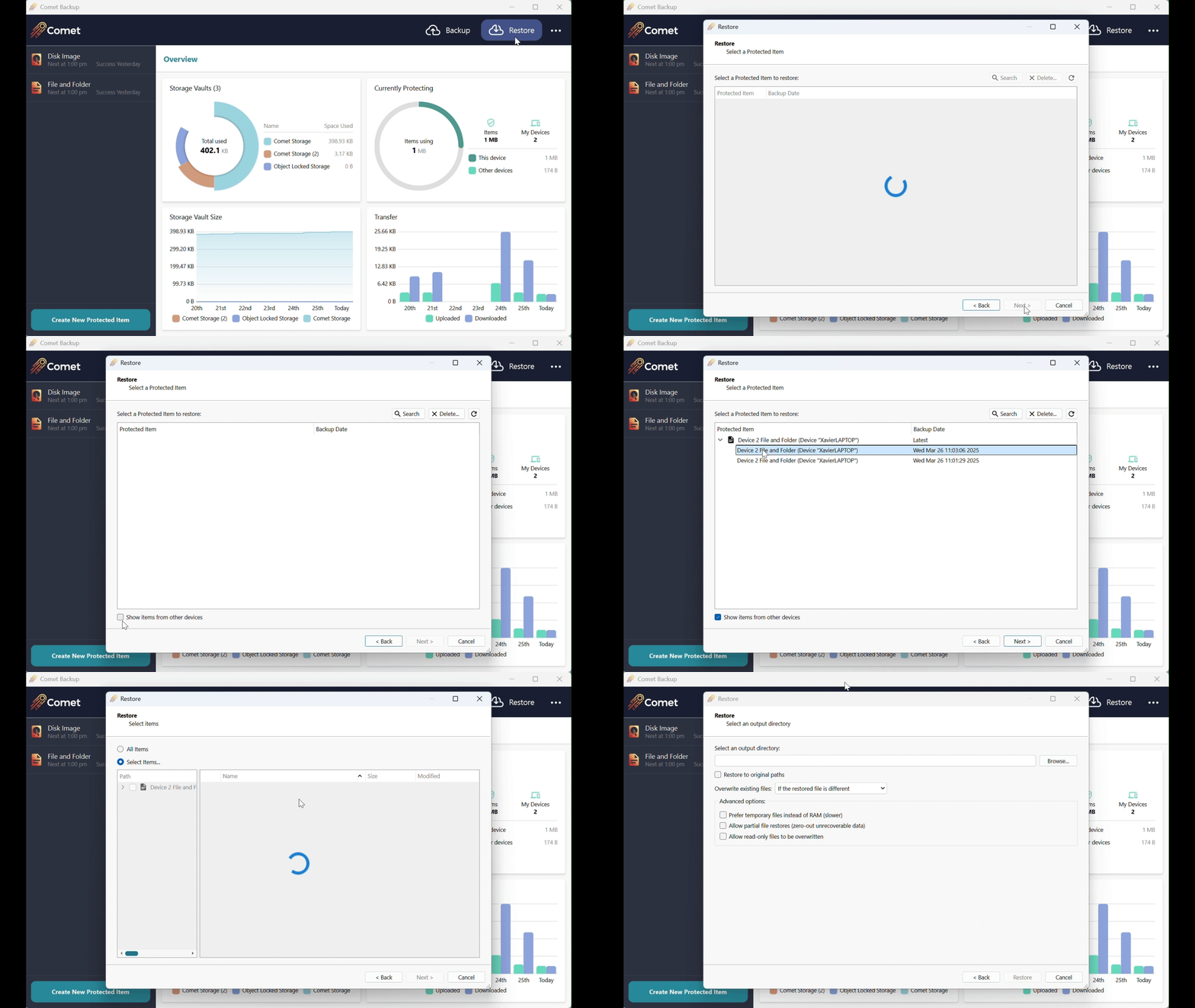
- Install the client software onto the second device, login using the user-profile username and password of the first device. If a new device, this will register a new device into the user-profile
- Open the Restore section of the client software, tick 'Show items from other devices'. Then click the 'Refresh' button top right to show the available snapshots from the first device
- Choose the snapshot you want to restore, and restore to a location of your choosing.
- Note: Devices will not attract fees or charges unless the device has Protected Items or performs a backup.
- Note: If the first user-profile has a Policy which adds default Protected Items, the second device will be have Protected Items, and will attract charges. You can temporarily disable the Policy from the user-profile so that any default Protected Items are not added to the test device when it registers for the first time.
Restore an accidentally-deleted Protected Item
- Login using the user-profile username and password of the first device. If a new device, this will register a new device into the user-profile
- Open the Restore section of the client software, tick 'Show unknown items'. This will list snapshots which are available, but have no detail, because they have been deleted from the list of Protected Items.
- Choose the snapshot you want to restore, and restore to a location of your choosing.
Job Logs
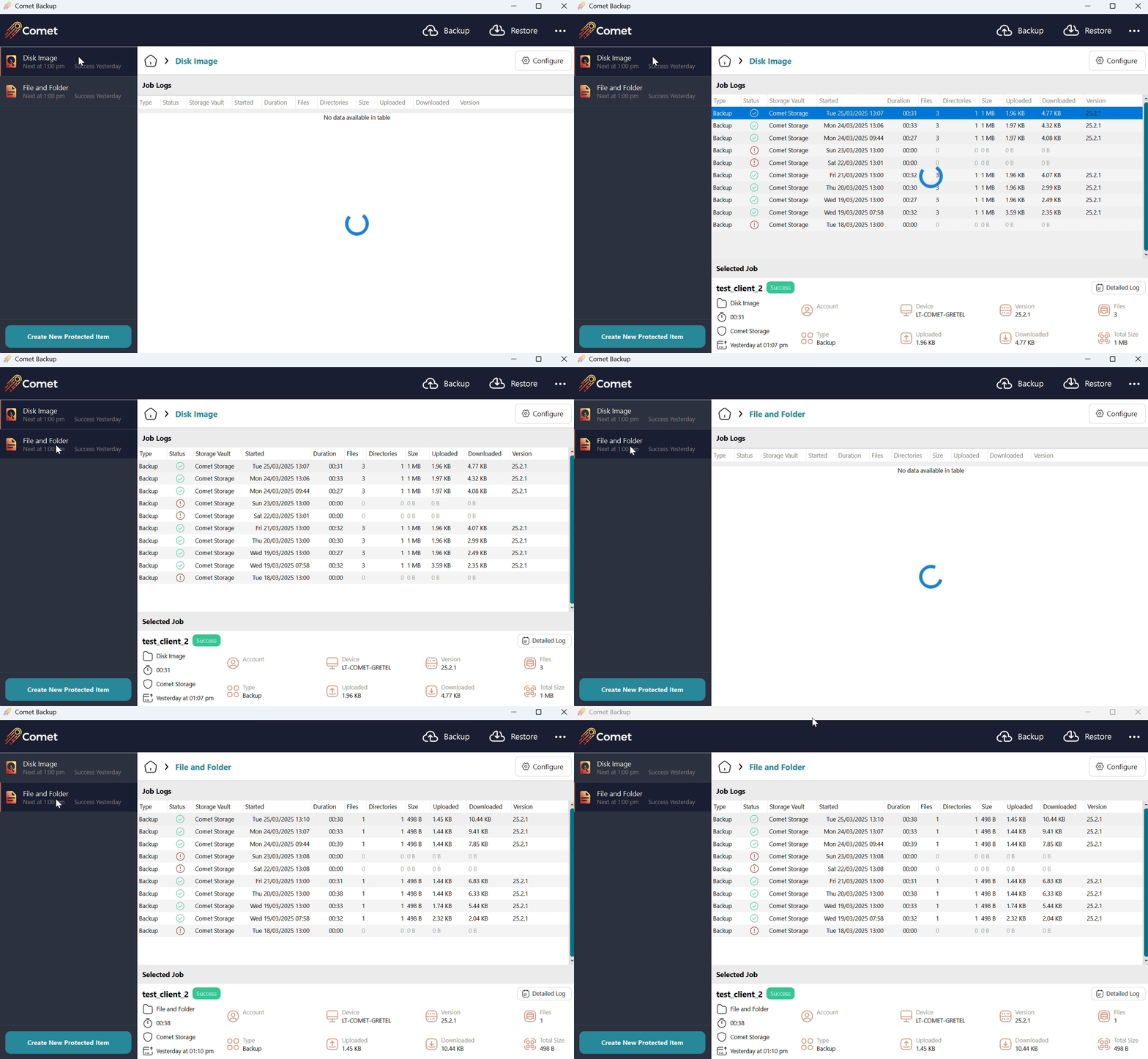
Click on the Protected Item to access all job logs for that item.
Account tab
The account tab shows
- A list of your Storage Vaults, where data can be stored
- A list of devices registered within your account
- Additional actions ("Account" button; "Import" button; and the software version number).
Add a new Storage Vault
To add a new Storage Vault, mouse over the "Storage Vaults" text and click the "Add" button.
For more information about configuring a Storage Vault, see the "User configuration" section. No changes are applied until the Save button is pressed.
Edit an existing Storage Vault
To edit an existing Storage Vault, right-click the row and choose Edit from the context menu.
Operations on Storage Vaults
Further operations are available under the "Advanced" sub-menu when you right-click a Storage Vault.
>Apply retention rules now
ColoSafe will automatically perform a retention pass after each backup job. You can immediately run a retention pass by choosing the "Apply retention rules now" option.
Rebuild indexes
This is a technical feature to repair a specific type of potential issue. It is safe to use at any time, but should generally only be used if your support agent recommends it.
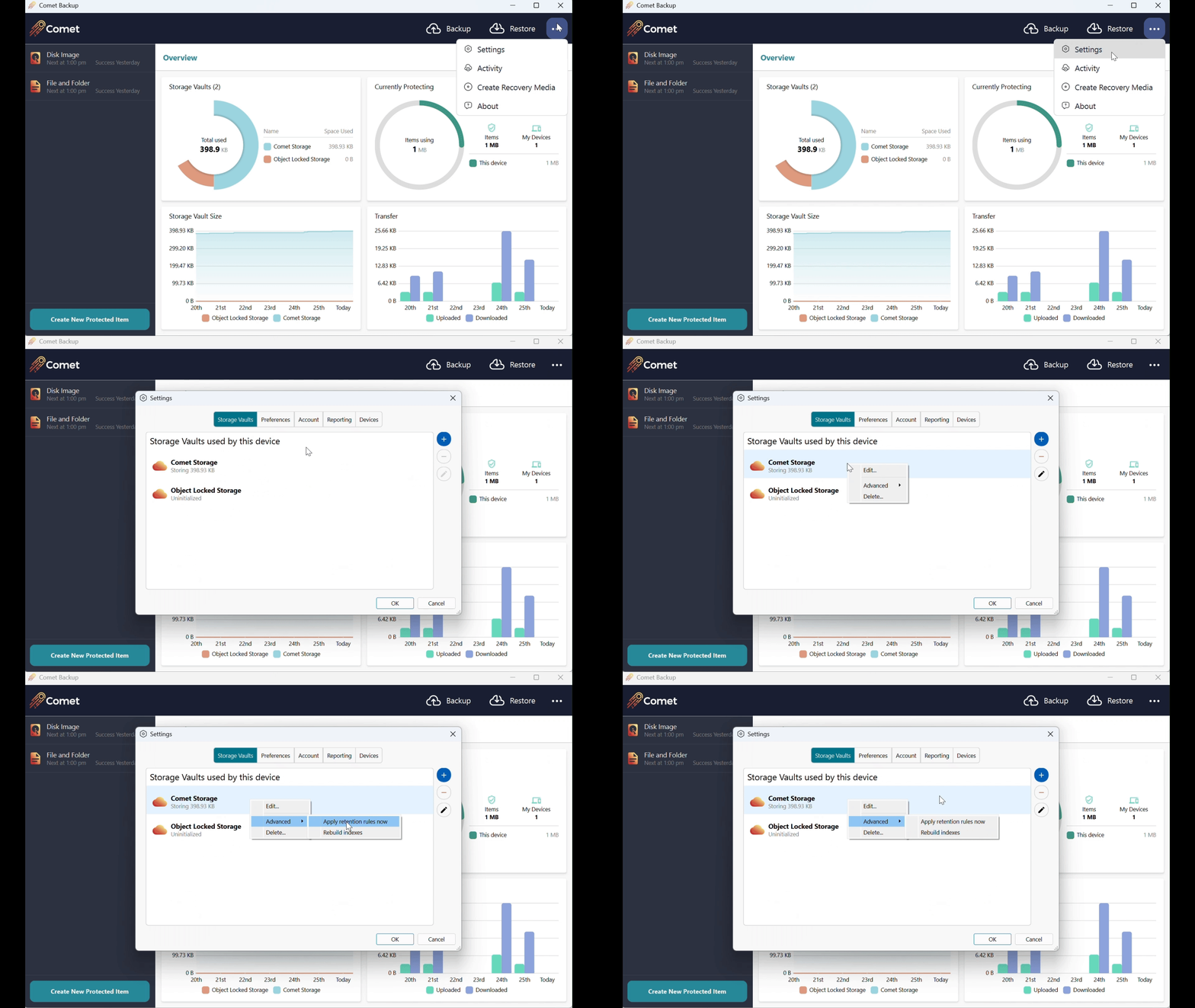
Account dialog
The Account dialog allows you to configure your username, password, privacy, language, timezone, and email settings. For more information, please see the "User configuration" section.
Lock and Disconnect
The ColoSafe Backup Client allows you to view and manage your backup settings. However, backup jobs will continue to run in the background even when the desktop app is closed.
- Use the Close button to close the desktop app, without logging out or locking the app. The app can be launched again and will open to the main screen, not the login screen. Backup jobs will continue to run in the background.
- Use the "Lock" button to log out of the desktop app, while still allowing backup jobs to run in the background. The app can be launched again and will open to the login screen, with the username pre-filled.
- Use the "Disconnect" button to log out of the desktop app and also from the background service. Scheduled backup jobs will no longer run. The app can be launched again and will open to the login screen, with no username pre-filled.
Importing data
ColoSafe Backup will scan your local device for certain online backup products from other software vendors. If a supported product is found, you may be prompted to import settings from the detected product.
Recovery Media
Recovery Media is a standalone, bootable operating system. The recovery media allows you to boot a device into the recovery operating system, in order to run the ColoSafe Backup application and connect to your ColoSafe infrastructure (Management Console and/or Storage Gateway) over the network, to replace the device's primary operating system during a Disk Image restore.
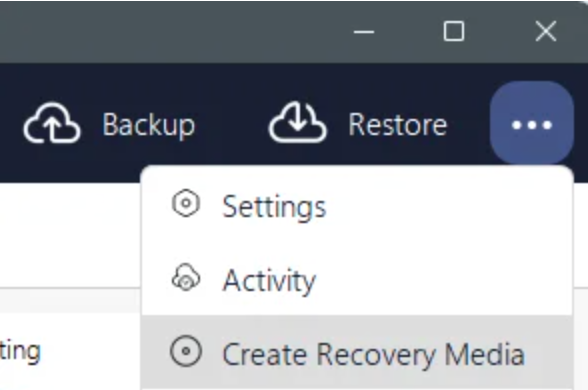
ColoSafe Backup includes a built-in feature to create custom recovery media on a removable USB flash drive, an external USB hard drive, or an ISO file, via the "Create Recovery Media" menu option:
The following options are available:
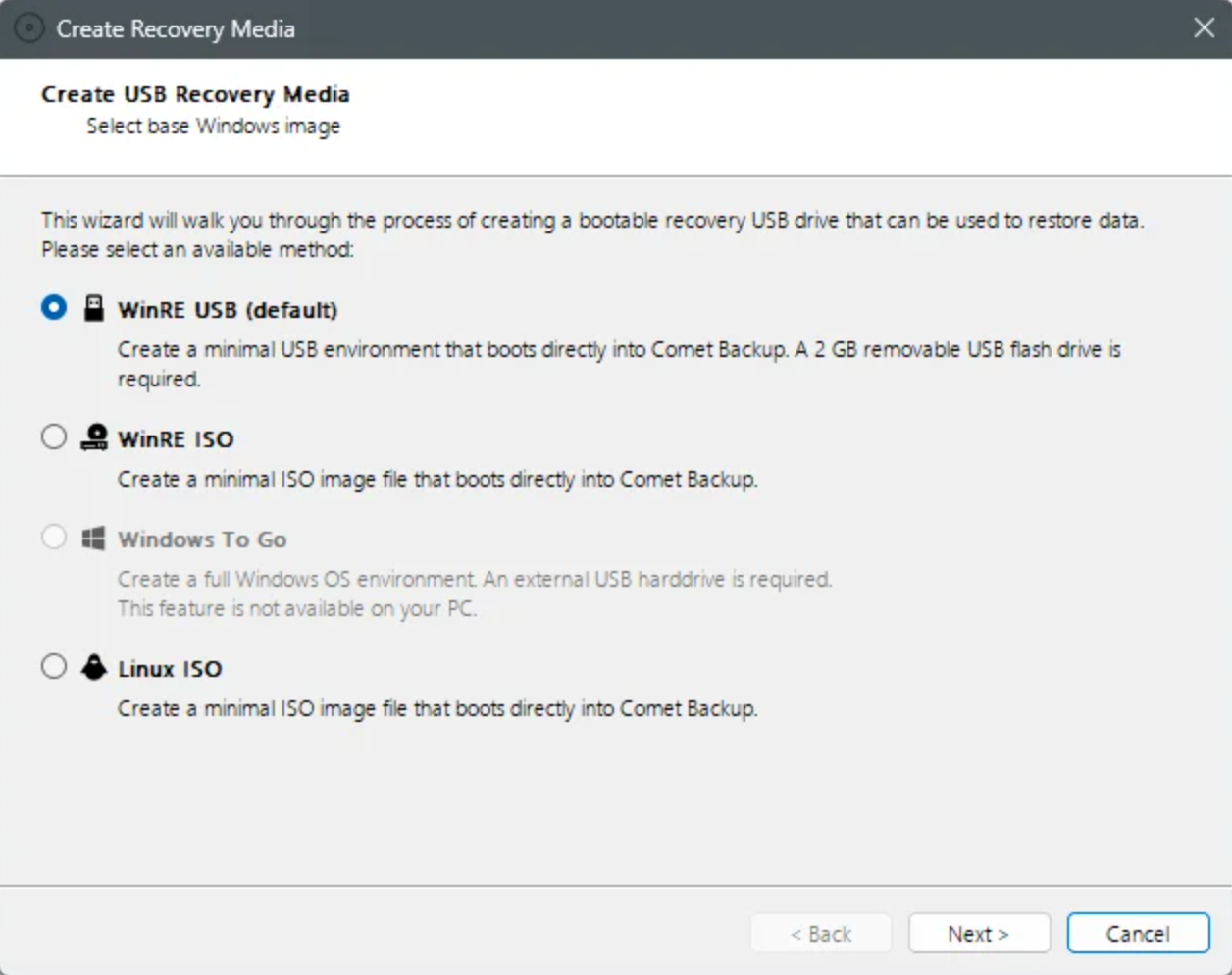
WinRE
WinRE is the default option for creating Recovery Media within the ColoSafe Backup desktop app. It can be created either on a physical USB drive, or as an ISO file.
System Requirements
This option is only available if the ColoSafe Backup device is running Windows.
This option requires that Windows Recovery Environment is installed and available on your PC. If it is not installed, you may be able to install it via the reagentc /info command.
Create as USB
Selecting this option allows you to create a minimal USB Recovery Media based on the Windows Recovery Environment. This option is recommended when restoring a physical PC.
This option requires a removable USB drive of at least 2GB in size and up to 32GB. The size requirements may be larger if additional drivers get installed into the image.
External USB hard drives are not widely compatible with this option. However, they may boot correctly depending on your hardware. Check the "Show all drives" checkbox to show available external USB hard drives.
Create as ISO
Selecting this option allows you to create a minimal ISO image file based on the Windows Recovery Environment. This option is recommended when booting the ISO in a virtual environment or in a cloud VM.
Configuration
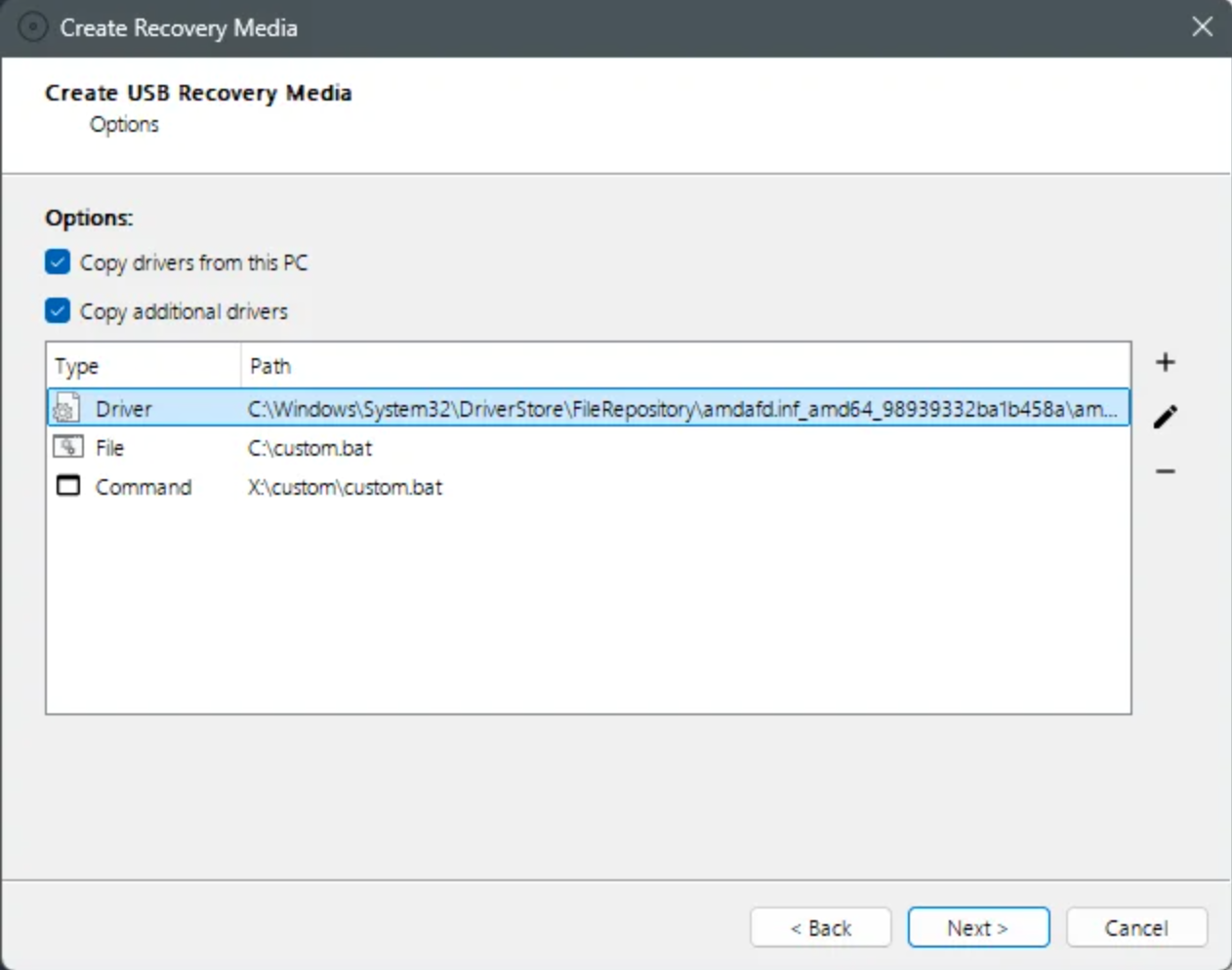
On most common hardware, WinRE will successfully boot in a basic way without requiring additional drivers. However, adding additional drivers to the generated recovery media may be necessary for some hardware and may improve your experience when using the recovery media.
You can choose whether the current OS drivers are copied into the recovery media. This feature extracts in-use third-party drivers from the current OS using the dism /export-driver technology.
- The exact selected drivers will depend on your running OS. In our experience it mostly includes OEM drivers. The included drivers could be of any type (chipset/network/graphics/audio/usb/pcie/storage/...). There are no guarantees about what drivers will be added, but it should generally be helpful in making sure you can use the device.
Optionally, you can choose to add (slipstream) additional drivers and programs into the image.
- You can add drivers in
*.inffile format. This is the standard file format for driver installation packages on Windows. When choosing this option, the ColoSafe Backup desktop app will open a file picker to theC:\Windows\System32\DriverStore\FileRepository\directory that contains most currently-installed driver packages on the current PC. - You can add custom files and folders. These will be copied to the resulting media under the virtual
X:\custom\directory. - You can add a custom command to run during startup. For instance, this may be useful to run any driver installer that was only available as a custom installer exe file. Because custom files and folders are copied under the virtual
X:\custom\directory, your resulting custom command to run should take the formX:\custom\my-installer.exe.
After completing configuration and generating the recovery media, the most recent successful settings are preserved in the Windows registry for the next use.
Booting WinRE
ColoSafe generates the recovery media using parts of your installed operating system. No additional download is required to create the drive.
- The generated media preserves the custom branding of the installed ColoSafe Backup application.
- The generated media impersonates your own Device ID and, if booted on the same physical hardware, will appear to ColoSafe as the same device.
- The generated media will be either x86_32 only, or x86_64 only, depending on your installed Windows OS version.
The generated media uses a hybrid MBR/EFI boot and should boot correctly on both MBR and UEFI PCs.
- The drive uses the Microsoft ntldr bootloader and should boot correctly on UEFI PCs requiring Secure Boot. If you experience issues booting the generated media, you could try to temporarily disable Secure Boot from your UEFI firmware menu.
There may be a black screen for a minute while the recovery OS is decompressed into memory.
The generated media is not compatible with Ventoy's default boot options. If you use Ventoy, open the ExMenu and choose the advanced "WIMBoot" boot mode for best compatibility.
Using WinRE
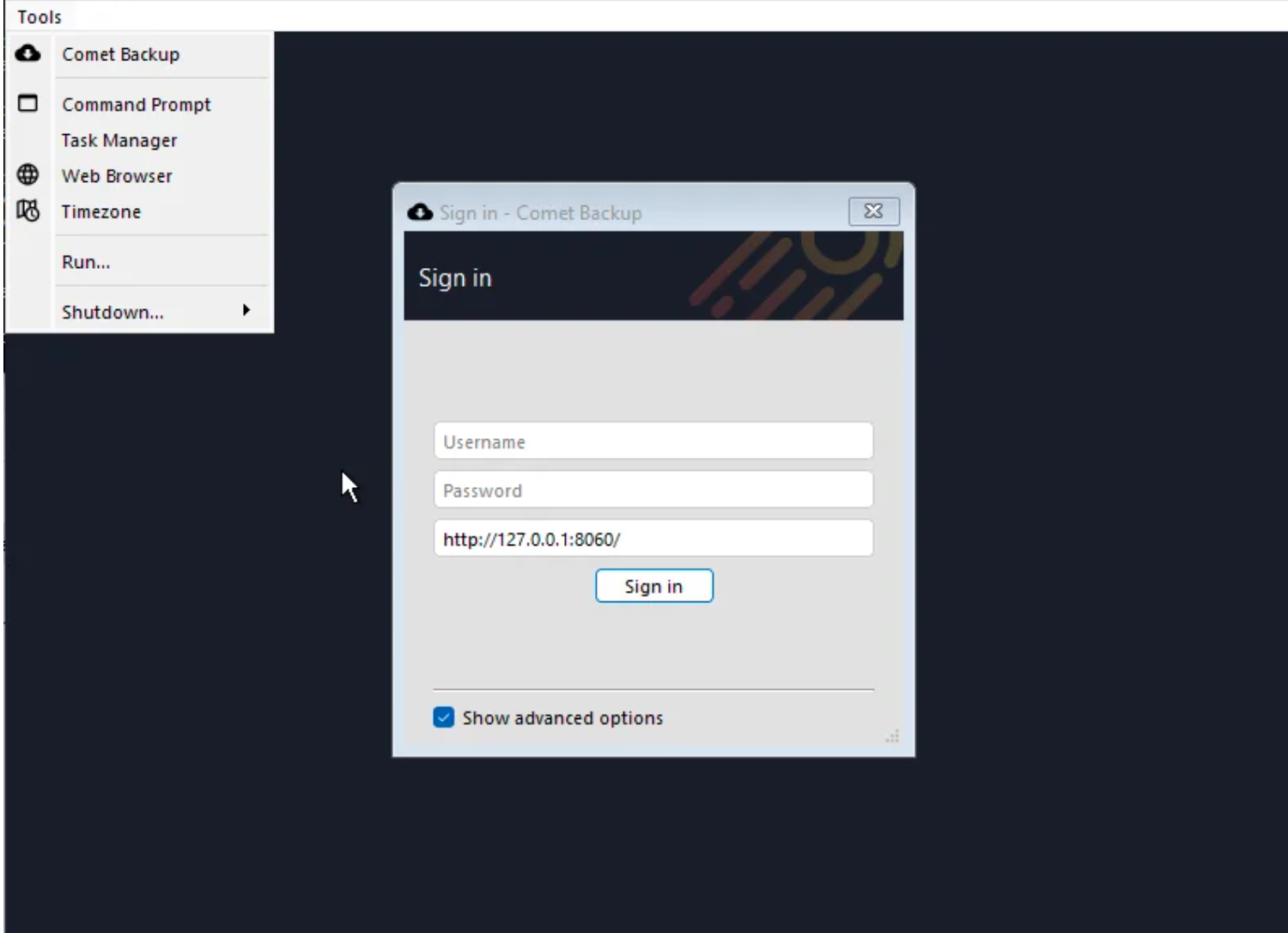
When booting the generated WinRE-based media, the ColoSafe desktop app will appear directly. You can use ColoSafe to restore data.
The "Tools" menu at the top of the screen allows you to access some utilities:
- Command Prompt
- Task Manager
- Web Browser
- Timezone
The "Timezone" option opens a wizard dialog allowing you to reset the configured timezone and the current date and time for the recovery media environment. A device which is out-of-sync with internet time may experience difficulties with backups to some cloud storage providers.
After completing your restore, you should use the Tools > Shutdown option to exit the WinRE environment. The Shutdown menu allows you to shut down/restart the device, or, to exit it to the Microsoft Windows Recovery Environment. Exiting to the Windows Recovery Environment can allow you to perform any other pre-boot tasks (e.g. boot repair or access Command Prompt) before rebooting the PC normally.
Limitations
Some features are currently unavailable from inside the created WinRE environment:
Wifi support
Wifi support may or may not be available inside the WinRE environment.
One workaround is to connect to the network via wired Ethernet instead. Another workaround is to manually configure Wifi networking as follows:
- Find the currently used driver for your hardware's Wifi adapter
- Open Windows Device Manager (
devmgmt.msc) - In the "Network Adapters" section, find your wifi adapter
- Right-click the adapter and choose Properties
- On the "Driver" tab, click the "Driver Details" button
- Note the filenames ending in
*.sys - In ColoSafe's Recovery Media wizard, choose 'add custom driver', find the folder with the same name as the
*.sysdriver, and choose its*.inffile - Generate the ColoSafe Recovery Media
- Boot the ColoSafe Recovery Media drive and open a Command Prompt
- Start the Wifi subsystem using
net start wlansvc - Ensure that the wifi network interface appears in
netsh wlan show interfaces - Browse wifi Access Points using
netsh wlan show networksand connect to one
Missing features
- VSS for backup operations
- Workaround: It should not be necessary to use VSS for backup operations from inside the WinRE boot environment
- The Windows Disk Management GUI
- Workaround: Use
diskpartcommands
Drive letters may differ
When using the recovery media environment, the available hard drives are enumerated as-found. If a Local Path Storage Vault has been used for backups, sometimes the listing of drives will correspond to drive-letter-mappings in the existing Windows system, but when it does not, the drive letters will need to be explicitly set.
You can work around this issue as follows:
- Boot into the recovery media
- Open a command-line via 'Tools' -> 'Command Prompt'
- Type
DISKPARTto start the program - Type LIST VOLUME to show all available volumes and their current drive letters
- Identify which volume is the one which needs to be reassigned the label 'F' (e.g. volume 5)
- Type
SELECT VOLUME 5 - Type
ASSIGN LETTER=F - Type
LIST VOLUMEto verify
Usage of UNC paths for Storage Vault locations, rather than drive-letters, normally avoids this issue
Version Compatibility
The resulting WinRE USB drive is based on your PC's version of WinRE. WinRE is provided and updated by Microsoft and contains a version of the Windows kernel that is specific to the latest feature upgrade (e.g. 1903 / 1909 / 2004). For best results when using the "fix Windows boot problems" feature after a full disk restore, you should avoid using an old USB Recovery Media drive for a newer version of Windows (e.g. using a 2004-based WinRE should be able to boot-repair a 1903-based Windows installation, but perhaps not vice versa).
Legal Notice
The resulting WinRE image contains components of the Microsoft Windows operating system that can only be used under the terms of your Windows license.
Windows To Go
Windows To Go is an alternative option for creating USB Recovery Media within the ColoSafe Backup application.
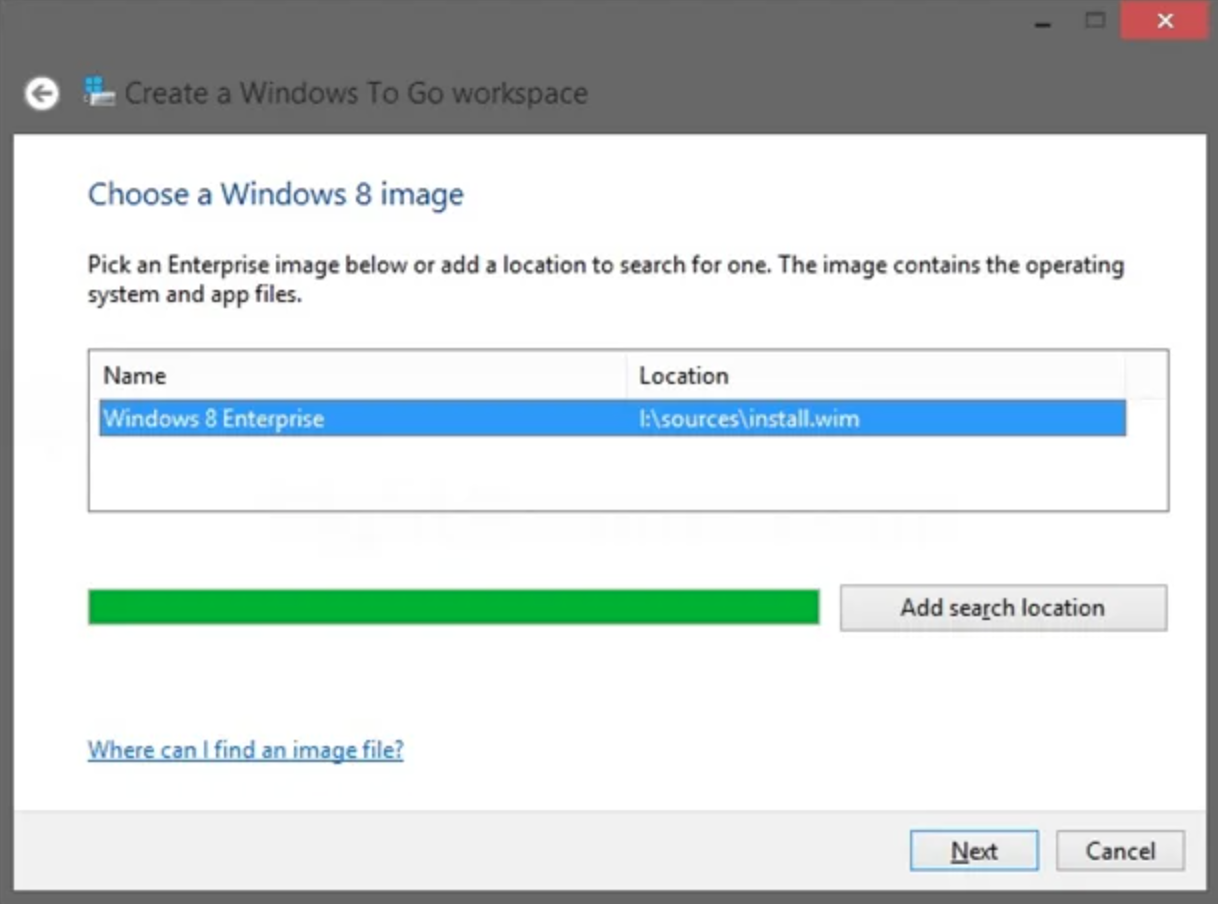
Selecting this option allows you to create a full Windows boot environment. It requires an external hard drive of at least 32GB in size.
System Requirements
This option requires the Portable Workspace Creator (pwcreator.exe) to be installed and available on your PC. This tool is included with Windows Server 2012, Windows 8 Pro, Windows 8.1 Pro, and Windows 10 Pro, but was removed in Windows 10 update 2004 owing to the impracticality of deploying critical software updates to this platform.
Using Windows to Go
No customizations are applied to the generated Windows To Go boot drive. You should boot into the drive, then install ColoSafe normally and use it to perform recovery operations such as restoring data.
Linux
This feature requires ColoSafe 24.6.6 or later.
The "Linux ISO" option is an alternative option for creating a recovery media. It supports creating a standalone recovery media as an ISO file.
System requirements
This option is available if the ColoSafe Backup device is running either Windows or Linux.
You must have Docker installed on the system. Any Docker distribution can be used:
On a Windows host OS, using Docker requires that hardware virtualization features are available on the device. Hardware virtualization features are enabled by default in the firmware for all PCs shipped with Windows 11 or later. PCs that shipped with an older version of Windows may require manually enabling virtualization features in the firmware (BIOS/EFI) before Docker can be used.
Configuration
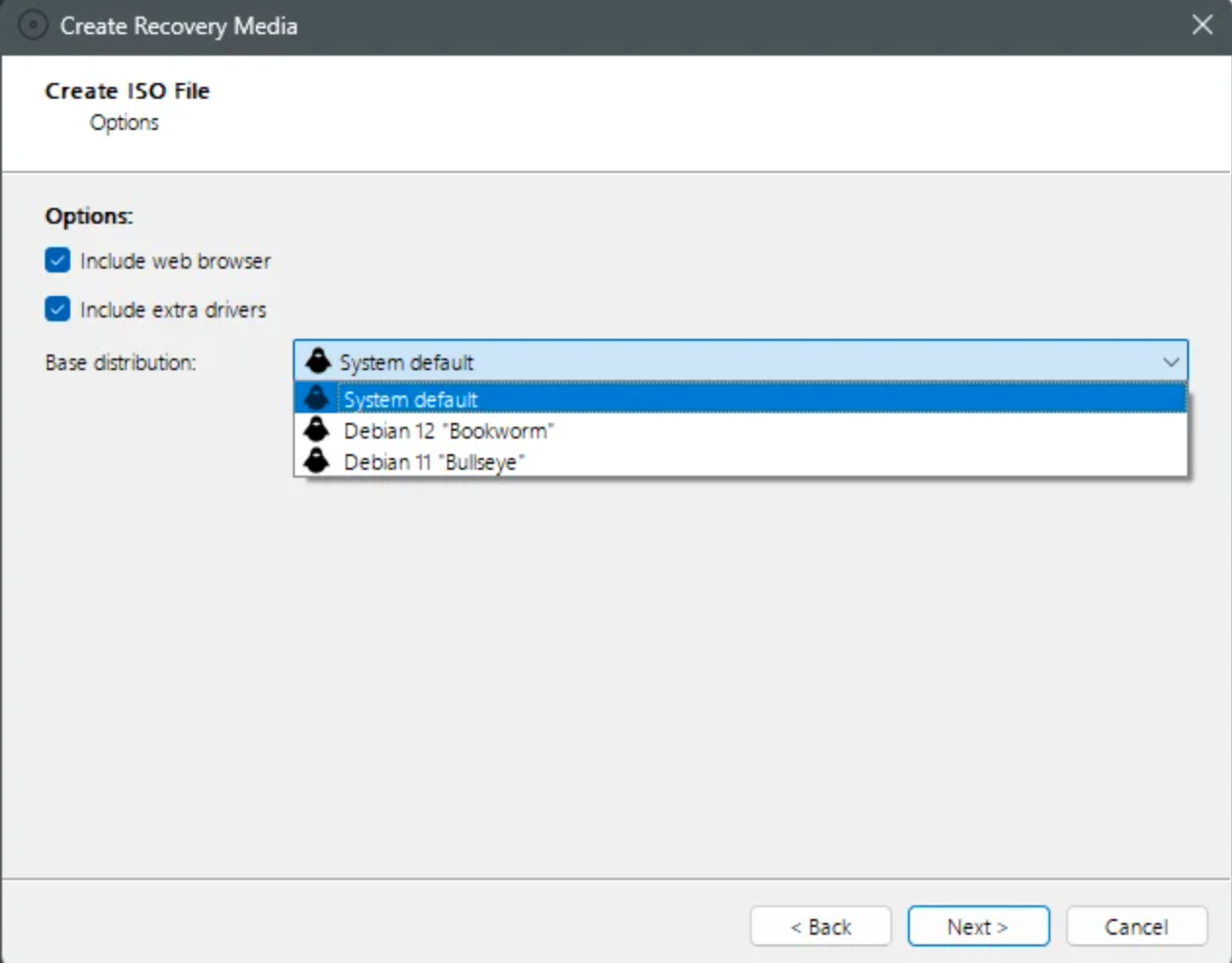
You can choose whether the recovery environment includes a web browser. Enabling this option installs a recent ESR version of Firefox inside the generated ISO file.
You can choose whether the recovery environment includes additional drivers. Enabling this option installs the linux-firmware-nonfree package. It is recommended to enable this option for best network, wifi, and graphics support in the recovery media. It does increase the generated file size of the resulting ISO file.
You can choose the Linux distribution that the resulting recovery environment uses as a base environment.
- The "System default" option is recommended to be used by default. At the time of writing, this corresponds to the "Debian 12" option, but may change in future versions of ColoSafe.
- Debian 12 "Bookworm" is recommended for best hardware compatibility.
- Debian 11 "Bullseye" is available as a legacy option that produces a smaller size ISO image.
Depending on your configured options, the resulting ISO image ranges between approximately 300MB and 700MB in size.
The resulting ISO image is fully branded according to the current user interface branding of the ColoSafe Management Console. The branding affects the generated ISO filename, the labelled options in the boot process, the image assets, and the branding of the installed ColoSafe Backup software inside the recovery environment.
Booting the Linux ISO
The ISO can be booted directly in a virtual environment.
To create a bootable USB drive for physical hardware, you should image the USB drive directly with Rufus, or dd, or any similar program.
The Linux ISO is not compatible with Ventoy. You may experience an issue Unable to find a medium containing a live file system when attempting to use Ventoy.
The image supports both BIOS and UEFI boot modes. The bootloader menu will inform you which mode is in use.
The image does not support UEFI Secure Boot.
When booting the operating system, the bootloader will offer you the option to boot normally or with the nomodeset option. The default option should work well in all cases. However, if you experience no graphics after booting (e.g. error message (EE) Fatal server error), try to reboot and swap to the other nomodeset option from the bootloader menu.
Using the Linux recovery environment
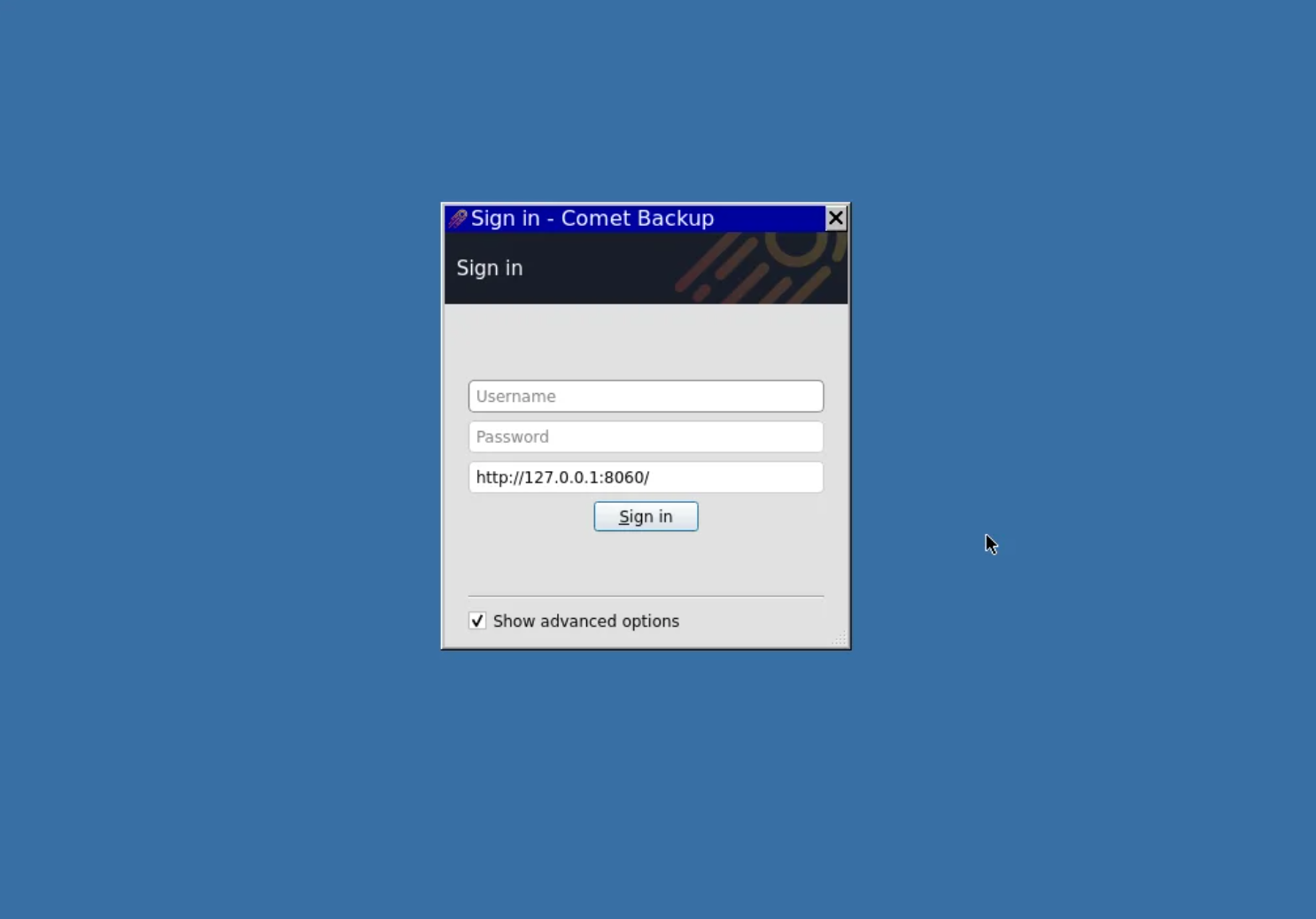
When booting the generated Linux-based media, the ColoSafe desktop app will appear directly. You can use ColoSafe to restore data.
The device will automatically connect to an ethernet network using DHCP. Wifi support is available on supported hardware. The Wifi network can be configured using the "Network Manager" menu option.
The recovery media is a single-user operating system running as the root user.
Many additional programs are available from Debian via the apt package manager. To install additional software, open a terminal window and type apt install program_name.
Limitations
If you switch a PC between Windows and Linux, the system's time may appear to differ, as by default the device's hardware clock is used for local time (Windows) or UTC time (Linux). You may need to change the system time before accessing TLS servers.
Legal notice
The chosen base Linux distribution is licensed to you under various open source terms, including the GNU General Public License (GPL). You have certain rights and responsibilities when using and redistributing the chosen base Linux distribution.
The ColoSafe Backup software includes proprietary code for you to use to generate a Linux-based recovery media. The ColoSafe Licensing Ltd company does not redistribute the base Linux distribution itself, and is therefore not subject to the GPL's source code redistribution clause.
Other boot environment
You may also create a recovery environment in any other way. Either Windows or Linux can be used as a suitable recovery environment. Some possible methods include
- creating a Linux bootable USB drive, or
- using a third-party tool like Rufus to create a Windows To Go drive, or
- using recovery media from your PC OEM vendor (e.g. Lenovo / Dell / HP)
In these cases you will need to manually launch the ColoSafe Backup app once booted into the recovery environment.